
If you are a user of a networked media tank (nmt) such as the popular Popcorn Hour series you already know that the stock UI pretty much blows, giving you nothing more then a “windows exploreresque” experience. Yes, almost all your files will play back, but let’s face it, we want to impress everyone and their mother with a slick looking UI. Fortunately there is hope as there are several add ins that you can use to spice up your nmt (but not your love life). Since I own a PCH C-200 and a PCH A-110, and with all the noise about new PCH products coming out soon such as the PCH A-200, I thought it would be a good opportunity to document setting up one of the add ins called YAMJ (Yet Another Movie Jukebox) developed by Omertron on my WHS. Once YAMJ is set up, you can stick with the YAMJ UI or change it up with some of the many different skins available (I will look at Aeon). As a little background, all my media is stored on my DIY WHS. It then gets served up to various media players throughout my house via cat5e/6. I use NFS or SMB to stream to my PCHs so this guide will focus on such a setup (if I have time later on I will try and document what is needed to set up using an http service such as myiHome). Also, YAMJ can be set up on any PC, it doesn’t have to be WHS, so the steps I will document should be the same regardless.
Files To Download:
Prep Work:
One of the nice things about YAMJ is that it will go out to TMDB/TVDB and scrape all your metadata. The key to getting accurate metadata though is to make sure you have your video collection named properly. In my opinion the best practice is as follows:
TV Shows:
Each show has its own folder, with a separate folder for each season of the show
\\MyServer\TVShows\ShowName\Season X
- SHOWNAME.S##E##.SOURCE.LANGUAGE.OTHERSPECS – episode name.ext
Movies:
Each movie has its own folder
- MovieName.mkv (or the Video_TS/BDMV folder would be here if a straight DVD/Blu Ray Rip)
TIP – if you want special box covers to appear add so to the end of the movie filename (for example if a Blu Ray rip label movie “Moviename 1080p BluRay.mkv). I will give a better example of this later when we look at the Aeon skin.
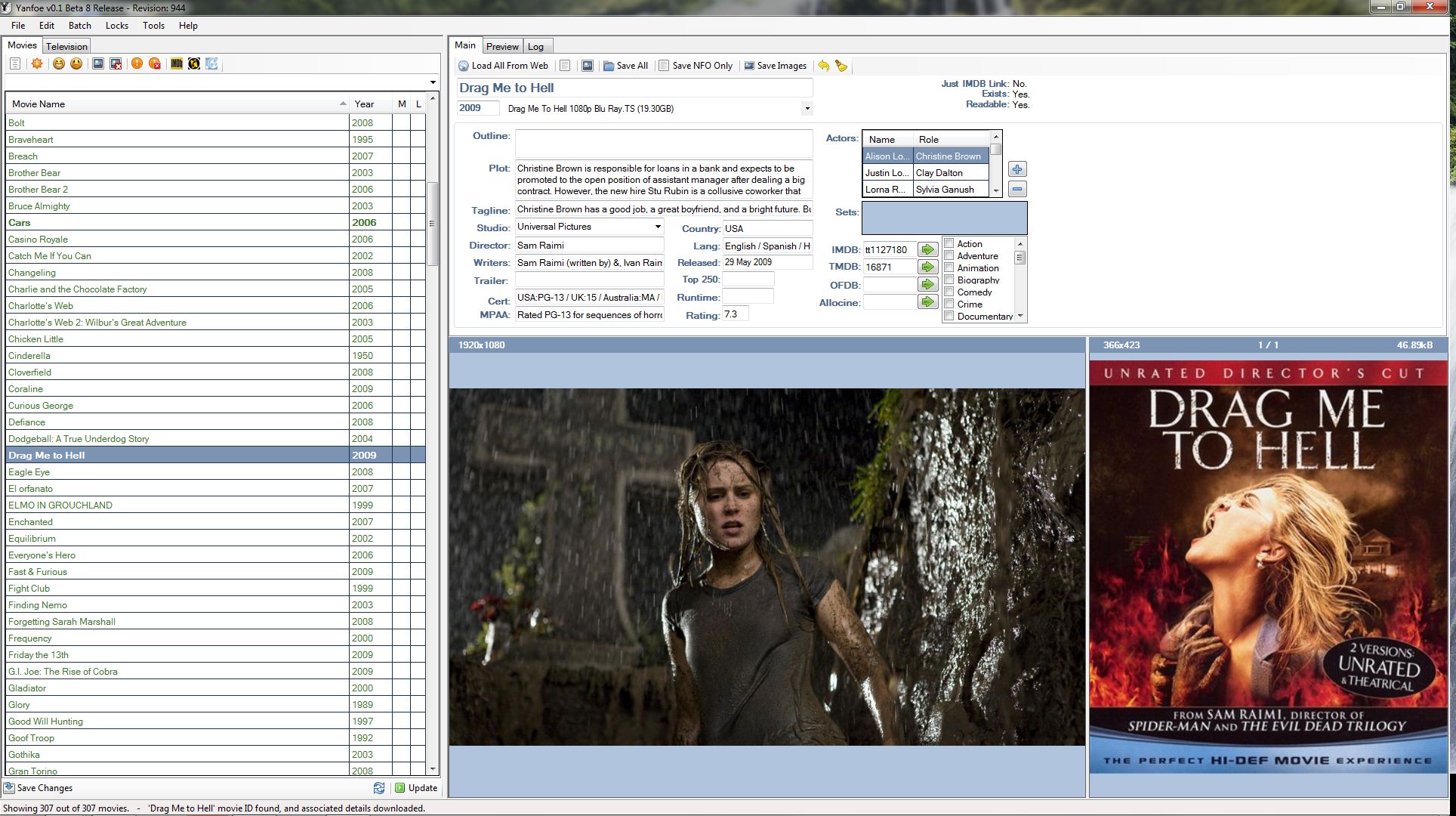
You can allow YAMJ to scrape for all your metadata, but the best way I have found to ensure you get the most accurate metadata is to use a separate metadata program. The program I would recommend for YAMJ is YANFOE, which is a program similar to metabrowserhowever it is set up specifically to generate metadata for YAMJ.
Since WHS is being used to store all the YAMJ created metadata, a network share should have been created already on the PCH for the location where your shared videos are. For more information on setting up a network share please refer to the following two articles:
Installation:
- RDP into WHS and extract YAMJ to the C: drive. I made a folder called YAMJ on the C: drive and extracted all files there
- Extract YAMJ GUI Config into C:\YAMJ
- Create a folder in C:\YAMJ called “MediaInfo” and extract MediaInfo into this folder
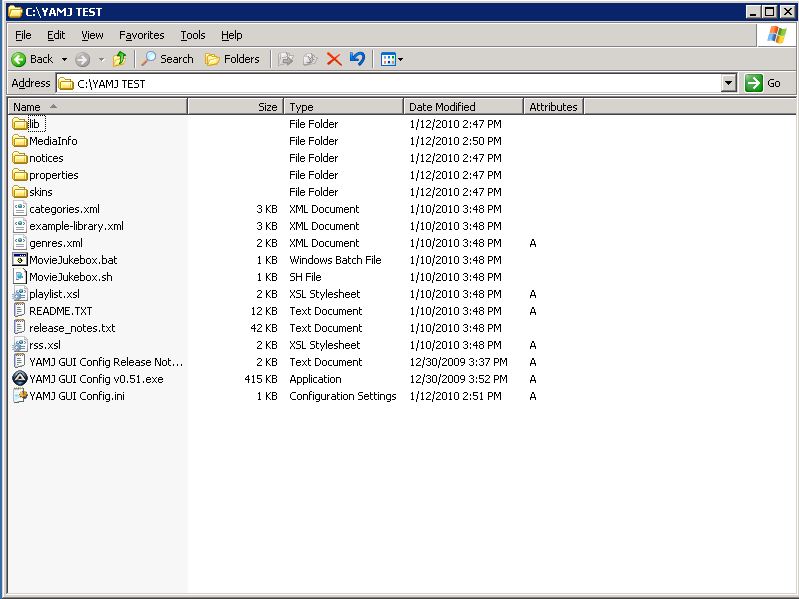
Once done your YAMJ folder should look like the below screenshot:
Setting Up YAMJ:
- Double click “YAMJ GUI Config v0.51.exe” in C:\YAMJ to run the configuration tool. You should now see the Config tool as shown below
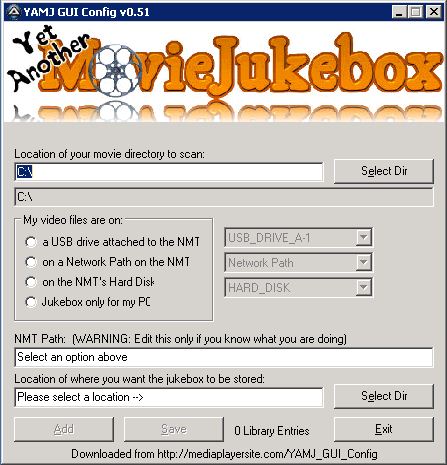
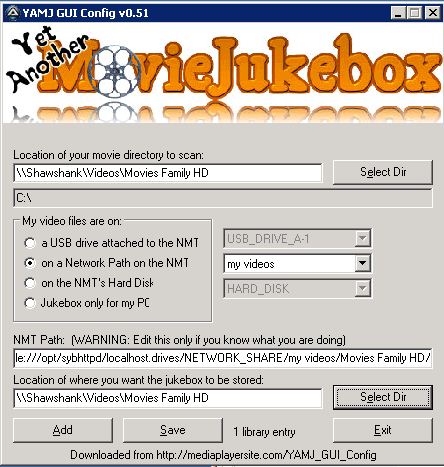
- The first step is to direct YAMJ to where your video collection is located. I have had issued when using drive letters so I generally try to stick with manually typing in the UNC path. You can only pick one location at a time, so if you have several different locations you will need to run through this process once for each location
- The next step is is to select how you are going to access your video files. In this example we are accessing our video files via a network share, so select “on a Network Path on the NMT”. When you select this option a pop up box will appear asking for your NMT IP Address. Once you enter and hit ok you should now see all the network shares available in the dropdown. Select the network share you want to use. For instance, I have a NFS network share on my PCH C-200 called My Videos. After entering my IP Address “My Videos” shows up in the dropdown on the Config tool. One of the benefits of doing it this way is that if you have multiple NMTs you can set this up once and all your NMTs can access YAMJ as long as the network share is the same on each jukebox

- After selecting the Network Path, next step is to select where you want the jukebox files that YAMJ will create stored. YAMJ will create a folder called “Jukebox” in the location that you choose, and all jpeg/html files will be stored here. YAMJ will also create a file called index.htm which will be stored in the root of the location that you choose. The index.htm file is what you will need to select from the NMT to start the jukebox. TIP – if you choose to store the jukebox files in the same location as the network share you choose, when you access that share from your NMT YAMJ will automatically load without having to first select the index.htm file.
- Once you have selected the jukebox directly, now click the Add button. A popup will appear asking you to assign a name, so type in whatever name you want.
- If you have no more locations to add click save, otherwise start back at the first step and walk through the process again. Once done adding all movie directory locations, click Save.
- If you go back into your C:\YAMJ folder you will now see two created files – 1) My_Library.xml and 2) My_YAMJ.cmd. My_Library.xml contains the locations of all the directories you want YAMJ to scan. If you ever need to change this you can either rerun the Config tool or just manually edit this file. The My_YAMJ.cmd file is what will actually run YAMJ, so now with everything set up double click the file to run.

- When you run the cmd file a dos prompt will appear and you can watch as YAMJ goes through your video collection. Once done you can close the dos prompt. If this is your first time running depending on how large your video collection is it could take up to 10 minutes to complete. Afterwards, YAMJ will only run against newly added videos, so the run time should drop drastically. TIP – on the first run I like to scroll through the log in the dos prompt to see if there are any sort of errors.

- Now that YAMJ is complete it is time to run over to the NMT, access the network share, and hopefully you should have a fresh Movie Jukebox waiting for you!
Movie Wall
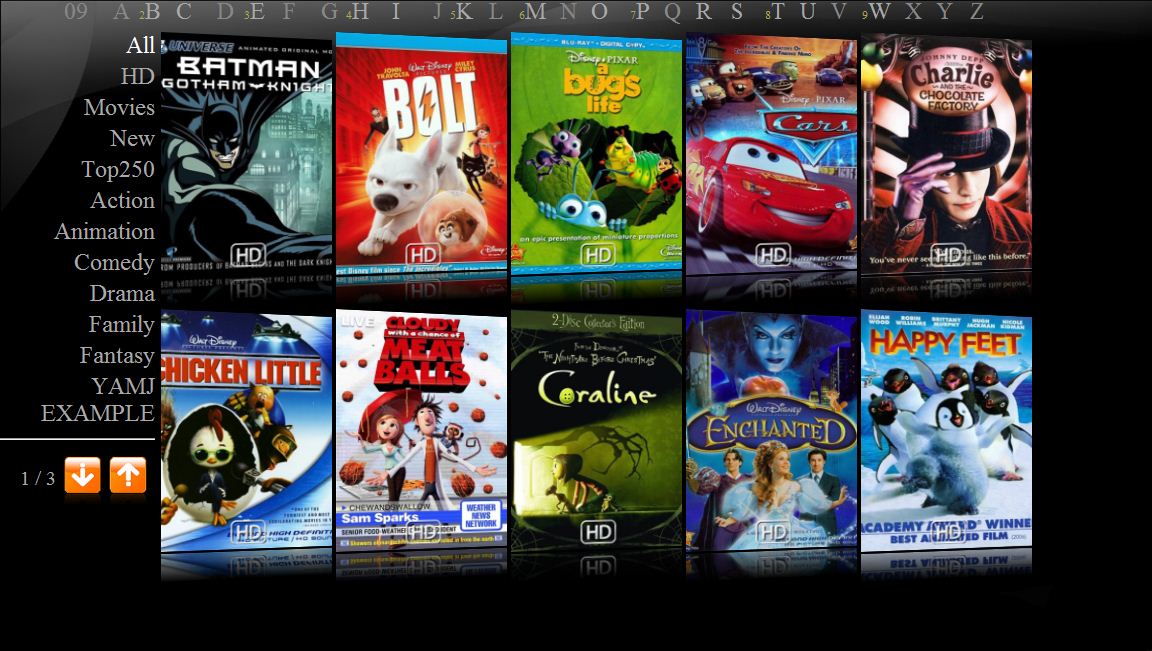
Movie Detail View

TV Show Detail View

Automating YAMJ:
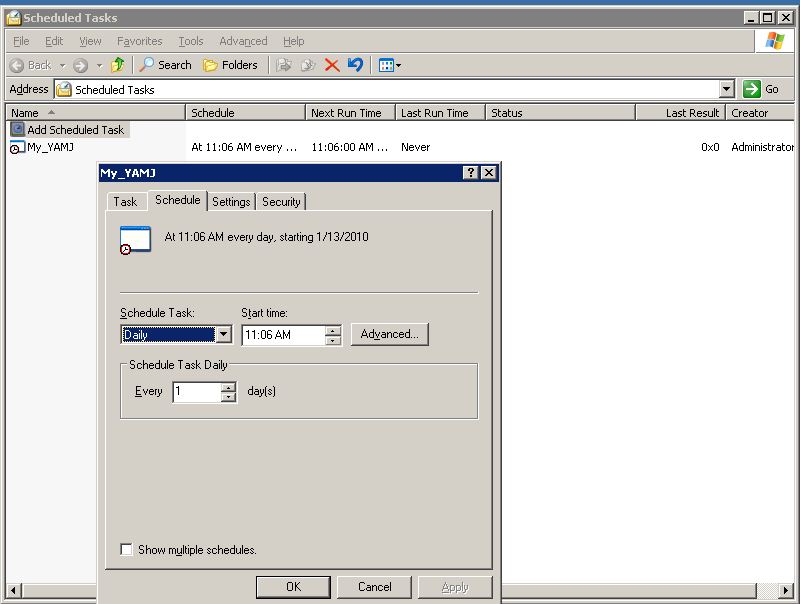
YAMJ is not dynamic, so any time you make a change to your video collection or change/update the metadata, you will need to rerun YAMJ. You can simply RDP into WHS and run the My_YAMJ.cmd file, but obviously the ideal solution would be to automate this process as much as possible. What many people do is create a task that will run the My_YAMJ.cmd file at set days/times (it seems most people will set YAMJ to run twice a day). In WHS go to Start Menu -> All Programs -> Accessories -> System Tools -> Scheduled Tasks. Double Click on “Add Scheduled Task” , browse to the My_YAMJ.cmd file, and set up a schedule for when you want it to run. It is that easy!
Skins:
If you are happy with the look of the default YAMJ then you are all set to go. However, one of the nice things about YAMJ is there is a great selection of user created skins that can be used in place of the default YAMJ skin (I WOULD HIGHLY RECOMMEND YOU GET THE DEFAULT YAMJ SKIN WORKING FIRST TO MAKE SURE EVERYTHING IS OK BEFORE MOVING ON TO ANOTHER SKIN). Probably the most popular skin as I write this post is the Aeon Movie Wall skin, developed by ejp. One of the biggest challenges I found when setting up the Aeon skin, and one of the reasons for writing this guide, is that a lot of the information for setting up the skin and making modifications is scattered throughout the main thread over on the nmt forums. To put it in perspective, ejp first posted about the Aeon skin on 29-Jul-09. In less then six months there are nearly 400 pages of posts!!! For the purpose of this guide I am just going to walk through setting up the basic Aeon skin and then go through a few modifications to spice things up.
Files To Download:
- Aeon Skin
- Notepad ++ (optional to edit property files, notepad will work just fine)
Setting Up Aeon:
- Extract the Aeon Skin zip file to to YAMJ Skins folder located at C:\ YAMJ\Skins
- You will now have a few options to tell YAMJ to use the Aeon skin and not the default skin. The first option would be to rename the current “default” folder in the Skins folder to something else and then rename the Aeon skin folder (which for me was named “anwyaj291220″) “default”. This is probably the easiest method. The other method will involve going into the YAMJ properties file and manually changing:
Assign Skin:
File Location - C:\YAMJ\properties\moviejukebox-default.properties
Go down to line 72 and change mjb.skin.dir=./skins/default to mjb.skin.dir=./skins/amwyamj291220
Example of code:
# Path to the skin to use when generating the Jukebox
# the default skin is geared toward HD displays
# an additional skin named “sd” is for Standard Definition displays
mjb.skin.dir=./skins/amwyamj291220
- You are now ready to run the Aeon skin. Delete all the jukebox files that were created by YAMJ and rerun the My_YAMJ.cmd file. Once done, run over to your NMT and you should have a new Aeon jukebox waiting for you that looks something like this:
Movie Wall View

Movie Detail View
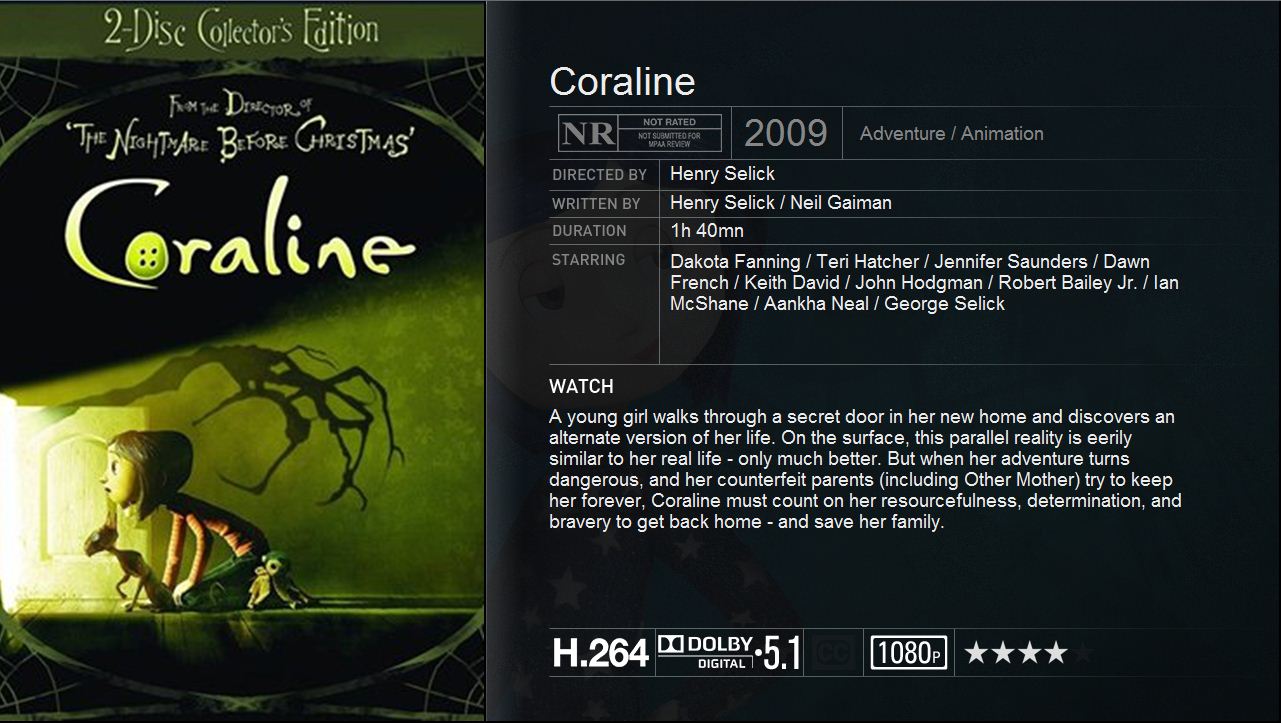
TV Shows Banner View

Modifications
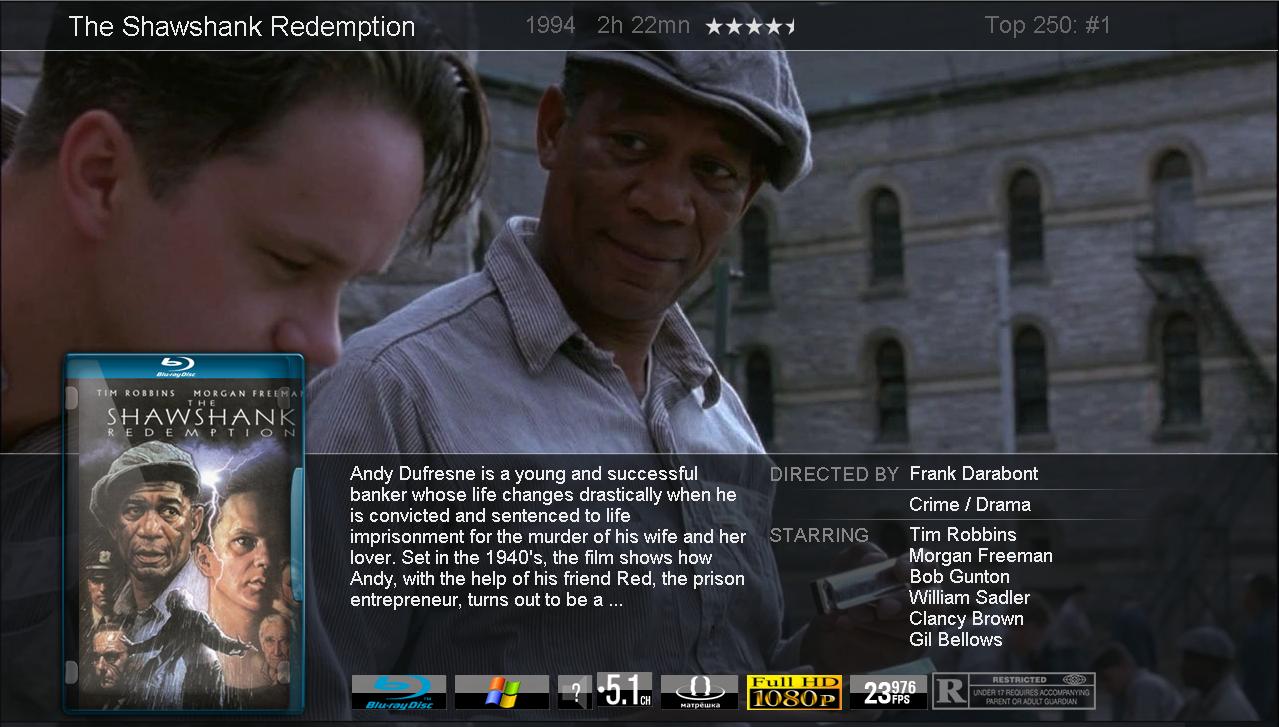
There are many modifications you can make to the Aeon skin (small stuff like changing the logos used to bigger stuff like changing the entire view). There is no way I would be able to document all of them (nor do I really care to!), so instead if you look at the screenshot below you will see the new Movie Detail view I have running of which I will explain the modifications I made. Whenever you make a modification you need to rerun My_YAMJ.cmd for the changes to take effect. You should also delete all your previously generated jukebox files before rerunning.

Low List:
File To Edit - C:\YAMJ\skins\Aeon\skin-options.xsl
The new look is called the Low List view. Go down to line 245 and change xsl:variable name=”LowList”>false</xsl:variable> to xsl:variable name=”LowList”>true</xsl:variable>
Example of code:
<!– ************LowList Options***************************** –>
<!– This gives the Movie details a similar layout as the TV details. –>
<!– It will also override dim and coikenMod. –>
<!– You must set fanart.movie.width=1280, I repeat 1280, in the skin.properties if you are setting this to ‘true’. –>
<!– Furthermore, I recommend setting posters.height=332 and posters.width=224 in the skin.properties. –>
<xsl:variable name=”LowList”>true</xsl:variable>
Gonzalu’s Low List 75%:
File to Edit – none
When you first enable Low List the background area where all the movie details show is solid, so you will not see any portion of the fanart. The Low List 75% mod will give the Low List background some transparency so the full fanart will show.
- Download Low List 75%
- Extract files to C:\YAMJ\skins\Aeon\html\pictures\dim\, overwriting if necessary.
Gonzalu’s Flag Pack:
File To Edit - C:\YAMJ\skins\Aeon\lowlist.xsl (optional)
This will replace the current icons.
- Download Flag Pack
- Extract files to respective subfolders in C:\YAMJ\skins\Aeon\html\pictures\, overwriting if necessary.
- There will be a small space between each icon, if you want to remove the spacing the following will need to be replaced in the lowlist.xsl file. Go to line 357 and replace:
<td>
<xsl:if test=”$ShowVideoSource=’true’”><xsl:call-template name=”videoSource” />  </xsl:if>
<xsl:if test=”$ShowVideoCodec=’true’”><xsl:call-template name=”videoCodec” />  </xsl:if>
<xsl:if test=”$ShowAudioCodec=’true’”><xsl:call-template name=”audioCodec” />  </xsl:if>
<xsl:if test=”$ShowSubtitles=’true’”><xsl:call-template name=”subtitles” />  </xsl:if>
<xsl:if test=”$ShowContainer=’true’”><xsl:call-template name=”container” />  </xsl:if>
<xsl:if test=”$ShowVideoOutput=’true’”><xsl:call-template name=”videoOutput” />  </xsl:if>
<xsl:if test=”$ShowFrameRate=’true’”><xsl:call-template name=”framerate” />  </xsl:if>
<xsl:if test=”$ShowAspectRatio=’true’”><xsl:call-template name=”aspectratio”/>  </xsl:if>
</td>with the below code:
<td>
<xsl:if test=”$ShowVideoSource=’true’”><xsl:call-template name=”videoSource” /></xsl:if>
<xsl:if test=”$ShowVideoCodec=’true’”><xsl:call-template name=”videoCodec” /></xsl:if>
<xsl:if test=”$ShowAudioCodec=’true’”><xsl:call-template name=”audioCodec” /></xsl:if>
<xsl:if test=”$ShowSubtitles=’true’”><xsl:call-template name=”subtitles” /></xsl:if>
<xsl:if test=”$ShowContainer=’true’”><xsl:call-template name=”container” /></xsl:if>
<xsl:if test=”$ShowVideoOutput=’true’”><xsl:call-template name=”videoOutput” /></xsl:if>
<xsl:if test=”$ShowFrameRate=’true’”><xsl:call-template name=”framerate” /></xsl:if>
<xsl:if test=”$ShowAspectRatio=’true’”><xsl:call-template name=”aspectratio”/></xsl:if>
</td>
Fanart Width:
File To Edit - C:\YAMJ\skins\Aeon\skin.properties
Since fanart is prominently displayed in this few, we need to change the default width. Go down to line 104 and change fanart.movie.width=795 to fanart.movie.width=1280
Example of code:
# Download fanart image for movies using the IMDB id : true or false
fanart.movie.download=true
fanart.movie.width=1280
fanart.movie.height=720
fanart.tv.download=true
fanart.tv.width=1280
fanart.tv.height=720
Box Covers:
File To Edit - C:\YAMJ\skins\Aeon\skin-options.xsl
If you want an overlay such as box covers to go over your posters, you need to enable. Go down to line 81 and change <xsl:variable name=”LowListOverlay”>false</xsl:variable> to <xsl:variable name=”LowListOverlay”>box</xsl:variable>
Example of code:
<!– Set this to true if you want to use an overlay for the poster in TV Detail and movie LowList view. –>
<!– false: no overlay –>
<!– true: glass overlay. If you want to change it, the overlay is located at /html/pictures/detail/tvposteroverlay.png –>
<!– box: source box overlay (Blu-ray, HD-DVD, etc). If you want to change them, the boxes are located in /html/pictures/boxes–>
<xsl:variable name=”LowListOverlay”>box</xsl:variable>
The box covers that will be used can be found at C:\YAMJ\skins\Aeon\html\pictures\boxes\. If you want to use different box covers you can write over the current ones
Gonzalu’s Box Covers W/ Right Opening:
File To Edit - C:\YAMJ\skins\Aeon\lowlist.xsl
If you look at my screenshot you will notice that the blu ray box cover has an opening on the right. However, the default box covers has the opening to the left. To change this to the right:
- Download Right Covers
- Extract all covers to C:\YAMJ\skins\amwyamj291220\html\pictures\boxes\, overwritings if necessary. Please note that if you want to use these covers you will have to do one of two things (i) when you copy the files you must rename to what is currently being used (i.e. by default bluray.png is what gets used for Blu Rays, so whatever file you copy over must be called bluray.png, such as BoxBluRayll->bluray) or (ii) edit the lowlist.xsl file to assign ‘video source bluray’ to BoxBluRayll.png
- In lowlist.xsl change go to line 30 and change <td width=”112″ height=”400″ rowspan=”3″></td> totd width=”83″ height=”400″ rowspan=”3″></td>.
- In lowlist.xsl change go to line 31 and change <td width=”230″ height=”332″ align=”center” valign=”bottom”> to <td width=”250″ height=”332″ align=”center” valign=”bottom”>
Example of Code:
<td width=”83” height=”400″ rowspan=”3″></td>
<td width=”250” height=”332″ align=”center” valign=”bottom”>
- When using the Right Opening mod a gap appears on the left side of the case. To correct this, you need to edit the exportdetails_item_popcornhour.css file. Find the line #Poster_Overlay__TV_NMT { visibility: visible; position: absolute; top: 253px; left: 23px;} and change to #Poster_Overlay__TV_NMT { visibility: visible; position: absolute; top: 253px; left: 13px;}
Example of code:
#Poster_Overlay__TV_NMT { visibility: visible; position: absolute; top: 253px; left: 13px;}
Sources:
File To Edit - C:\YAMJ\properties\moviejukebox-default.properties
YAMJ will determine the source based on keywords mapped against each movie file name. So for instance if you review my tip in the Prep Work section regarding adding BluRay to the end of a file name, this is where it would come into play. YAMJ will associate BluRay in the filename as being a Blu Ray source, and appropriate artwork will be assigned (The Blu Ray cover and logo you see in my screenshot). Since my Blu Ray movies had the work “Blu Ray” (notice the space in between) YAMJ was not picking this up as a Blu Ray source, so I had to add. Starting at line 163 you can edit this.
Example of code:
# comma-separated list of case-insensitive keywords to count as “sources”
filename.scanner.source.keywords=HDTV,PDTV,DVDRip,DVDSCR,DSRip,CAM,R5,LINE, HD2DVD,DVD,HRHDTV,MVCD,VCD,TS,VHSRip,BluRay,HDDVD,D-THEATER,SDTV,WEBDL# comma-separated list of case-insensitive keywords to map to a particular source
filename.scanner.source.keywords.SDTV=TVRip,PAL,NTSC
filename.scanner.source.keywords.D-THEATER=DTH,DTHEATER
filename.scanner.source.keywords.HDDVD=HD-DVD,HDDVDRIP
filename.scanner.source.keywords.BluRay=BDRIP,BLURAYRIP,BLU-RAY,Blu Ray
filename.scanner.source.keywords.DVDRip=DVDR
filename.scanner.source.keywords.WEBDL=WEB-DL,iTunes
filename.scanner.source.keywords.DVD=DVD5,DVD9
Toolbar Modificiation:
File to Edit – none
The toolbar is at the top right of the low list (shows “Watch”, 2009, etc…). This modification will give the toolbar the curvy/glossy look.
- Download Modified Toolbar
- Extract files to C:\YAMJ\skins\Aeon\html\pictures\, overwriting if necessary.
Gonzalu’s Top 250 Mod:
File to Edit – C:\YAMJ\skins\Aeon\html/exportdetails_item_popcorn.css
File To Edit - C:\YAMJ\skins\Aeon\lowlist.xsl
For movies that are ranked in the top 250 by IMDB, a banner will appear above the toolbar
- Download Top250 Mod
- Extract top250_bg.png to C:\YAMJ\skins\Aeon\html\pictures\detail\, overwriting if necessary.
- Place the following anywhere towards the top of the exportdetails_item_popcorn.css file
#top250_t {visibility: visible; position: absolute; top: 310px; left: 895px;}
#top250_n {visibility: visible; position: absolute; top: 313px; left: 995px;}
- Place the following right before<!– END LOWLIST MOVIE DETAILS PAGE CODE HERE –> in the lowlist.xsl file
<!– start TOP250 –>
<xsl:if test=”top250 != -1″>
<div id=”top250_t”><img src=”pictures/detail/top250_bg.png”/></div>
<div id=”top250_n”>Top 250: #<xsl:value-of select=”top250″ /></div>
</xsl:if>
<!– end TOP250 –>
Miscellaneous:
Studio Icons:
File To Edit – none
Aeon comes with a handful of studio icons. You can download additional studio icons if you would like to add a more complete group of icons
- Download Studio Pack
- Extract all files to C:\YAMJ\skins\AEON\html\pictures\studios, overwriting if necessary
Replacing Individual Flag Icons:
File To Edit – none
If there are certain Flag Icons you want to use it is very easy to replace. Users over on the nmt forums have been nice enough to make available custom flag icons.
- Custom Flag Icons can be found here
- Locate the Flag Icon(s) you want, and replace the existing the flag in C:\YAMJ\skins\AEON\html\pictures\flags
Filtering Home Page:
File To Edit - C:\YAMJ\skins\Aeon\skin.properties
When you first load the Aeon Movie Wall TV Shows and Movies will all show together. If you just want Movies to show on the initial load:
- Go to line 70 in the skin.properties file and change to mjb.homePage=Other_Movies_1. If you only want HD movies then mjb.homePage=Other_HD_1. If you only want TV Shows change to mjb.homePage=Other_TV Shows_1. In the jukebox folder that YAMJ creates you can assign any of the “Other_” files to mjb.homePage.
Sabish’s Low List Mod:
File to Edit – C:\YAMJ\skins\Aeon\html\exportdetails_item_popcorn.css
File To Edit - C:\YAMJ\skins\Aeon\lowlist.xsl
This is a mod to the current lowlist view. You must have the lowlist view enabled first. I really like this view but have some issues with the top and bottom of the view getting cut off slightly on my tv.
- Download Sabish Low List Mod
- Extract all png files to C:\YAMJ\skins\AEON\html\pictures\dim, overwriting if necessary
- Overwrite the lowlist.xsl and exportdetails_item_popcorn.css with the ones downloaded
Sabish’s TV Mod v2:
File To Edit - C:\YAMJ\skins\Aeon\tv-detail.xsl
File To Edit - C:\YAMJ\skins\Aeon\ppp\ppp-templates.xsl
File to Edit – C:\YAMJ\skins\Aeon\html\exportdetails_item_popcorn.css
This mod will provide an alternative view to the default Aeon TV Show view.
- Download Sabish TV Mod v2
- Extract tvbg-v2.png file to C:\YAMJ\skins\AEON\html\pictures\sabishmod, overwriting if necessary
- Overwrite the ppp-templates.xsl and tv-detail.xsl file with the one provided in the download
- Open the sabish-tvmod-2.css file downloaded, and copy all data to the end of the exportdetails_item_popcorn.css

Enable IMBD Number Rating
File To Edit - C:\YAMJ\skins\Aeon\skin-options.xsl
If you want to have the IMBD Number Ratings show, a quick edit is needed.
- Go to line 68 and change <xsl:variable name=”number-rating”>false</xsl:variable> to <xsl:variable name=”number-rating”>true</xsl:variable>Ex
Example of code:
<!– If you want to display the number rating next to the stars, set this to true –>
<!– If you DO NOT want to display the number rating next to the starts, set this to false –>
<xsl:variable name=”number-rating”>true</xsl:variable>
Final Thoughts:
Phew, if you have followed me through the entire writeup you probably need a quick breather and possibly some Gatorade! It is not as bad as it looks, but at the same time it is still a user intensive process. This is where you can appreciate the simplicity of HTPC applications like XBMC or Media Browser, and the ability to just change your view at the click of a button. Whenever you get into a situation where you need to manually edit a properties file there always runs the risk that something gets screwed up, so take a deep breath and take your time going through.
Additional Resources:
- Aeon Thread
- KILL3M’s Reference Guide
- YAMJ Thread
- Gonzula’s YAMJ/Aeon Setup Videos
- accident’s Excellent YAMJ/Aeon Guide
- Chuck Norris Facts

Article by Damian
Hi, my name is Damian, and I'm tech gadget addict! Although I always had some interest in technology, it wasn't until I got my EX470 and more importantly found Mediasmartserver.net, that my interest became an addiction. My goal, aside from world domination and to see the Mets/Broncos win another championship, is to set up the perfect digital home where all my media is available at the click of a button. When I am not writing for Mediasmartserver.net you can find me over at my blog at http://www.adigitalhomeblog.com or follow me on twitter
{ 402 comments }
I have been running the standard version of YAMJ for a while now and always lusted after Aeon but never got round to doing it, I will now, thanks for the guide, great job
Quick questions what is Cinemascope and the overscan tools for??
Honestly not sure what Cinemascope mode is. As for the overscan tools it is suggested to use if YAMJ doesn’t look correct on your tv (for example if everything looks shifted to the left). I tested YAMJ on two different tvs and never had that issue, so I never used the overscan tools.
Nice write up Damian, I just did this not to long ago and the results are awesome. One thing I would add to what you wrote is that if you are not a MSS power user and have some concern about the step that involves an RDp into your MSS you can do like I have done and install YMAJ on your desktop comptuer and have the files output to the MSS with the same results.
Mike
Mike – the results are definitely a welcome change to the crappy stock UI. I think I actually mentioned if you look at the last sentence of the first paragraph that this can be done on a PC, it doesn’t have to be done rdp’d into WHS. I can try to clarify a little more if you think I was a little vague, not a problem.
I think it will get interesting once the new Flash Lite UI finally appears, as the jukeboxes should hopefully change to take advantage of. I saw a clip of what the UMC jukebox would like like as a Flash Lite jukebox and it looks real nice, had an XBMC feel to it.
also i get error messages for tv series and no episode tiles, any ideas
see pic here http://mobiletechaddicts.com/wp-content/uploads/2010/01/untitled.jpg
I’m probably excited about the new PCH products for a reason different than others. Thanks to your advice I bought my first A-100 a few weeks ago so what is old news to most is new to me. Over the last week the A-100 seems to be getting really cheap on eBay so to have 4 or 5 or them around the house seems very possible. Honestly for me 99% of the time the PCH is going to be used by the kids watching movies or archived TV so while the new UIs are cool the AEON movie wall should suite me for many years. When you show the set up to someone it looks like Kaladiscope (think that’s what it’s called) set up that cost $10,000 a few years ago. IT amazing to me that for about $100 you can have a set up that you could tell people cost $2500 and most would probably believe it did.
@ Chris – is it for all your tv shows, or just the one you sent a screenshot of? The error looks TVDB related, but I did see that error with a few of my tv shows as well.
every one of them, i may update to the latest version of yamj
@ Mike – I completely agree. Let’s face it, as much as we like our toys and to show them off, a big part of why we do it is for the wife and kids (at least that is what I tell my wife!!!). Once my boys get older I can definitely see the same type of setup as you, have multiple devices througout the house and not having to spend a fortune. At some point I will just have to look more closely into parental controls.
I just got my A-110 back from the repair shop and it is working great. Yes, the C-200 does have a more powerful chip and does run quicker, but when it comes to playing a movie they both handle the same. Just goes to show that you don’t need to have the latest technology.
Yeah, I would update to the latest YAMJ. Have you ever had tv shows working before?
yeah they all worked great before
Latest version of yamj solved the problem
Great to hear!!!
hmmm, a very interesting article. Just bought my first media streamer (Tvix 6600N) a month ago. Will this work with the Tvix 6600? If so i have something to play with this weekend.
@ Marcel,
I just looks at the specs for the TVIX 6600N and it appears that it runs on the realtek chip (RT1283DD). Unfortunately this will not work for TVIX as the NMTs imply a sigma device running Syabas software.
Damian,
Reading that makes me appreciate SageTV and its sometimes complicated fine tuning a whole lot better.
Looks pretty cool. It’s funny how the movie GUI are all starting to look for similar to each other regardless of platform.
Tex,
Haha, yeah, that is exactly what I commented about in my final thoughts. I definitely learn to appreciate some of the other platforms I use. I guess at some point there are only so many different ways you can present your media.
Isn’t this the future? http://www.popbox.com/ It will play photos/music/video via attached storage, networked storage, or internet (including netflix). Seems like the holy grail to me.
Now, if I could jam one of these quad tuner capture cards http://www.engadget.com/2010/01/05/cetons-quad-cablecard-tuner-for-windows-media-center-gets-a-pri/ into my HP mediacenter, and pick up a few of the PopBox units, I could eliminate all of the cable providers set top boxes in my house. All we watch are recorded shows anyway.
I’m still waiting for someone to give me a DVD/blue ray disc juke box that I can hook to my WHS and control from another room.
This is interesting stuff. Does anyone know of a robust PC client that interfaces with jukebox software like this?
You want to use an HTPC for playback with a jukebox type look?
Damian,
I have several XP PCs that I would like to have do the streamed movie playback. Instead of picking files from the explorer it would be nice to run an application that would give a HTPC type of front end for the movie selection.
Probably the easiest thing to do would be to install XBMC on your XP PCs. Here are a couple screenshots of some different jukebox views:
http://img98.imageshack.us/img98/5949/movieslist.jpg
http://img42.imageshack.us/img42/9159/moviesmediainfo2.jpg
http://img5.imageshack.us/img5/4043/moviesthumbnail.jpg
Let me know if this is what you had in mind. Also, keep in mind depending on the specs of your XP PCs you may struggle if you are looking to play back HD content
@ Bruce,
The PopBox has definitely sparked a lot of interest. It is running the same chip as the PCH C-200 and the upcoming A-200, so I would expect it to be able to play everything. I am curious to see if you can implement your own jukebox like YAMJ or you are locked down. Also, how is the IMDB metadata scraping handled, where is it stored, can you edit, etc… Finally I would want to know if it will have full HD audio bitstreaming capabilities. For anyone who has full BR rips and wants BR menu access, you would lose this with the PopBox.
Of course I will try to get my hands on one for a review!!!
@Damian: Awesome post! With the press release of the A-200 I think I am finally ready to pull the trigger on my PCH purchase and this guide has not come a moment too soon as I just started researching jukebox plugins again.
It looks like the real heavy hitter is YAMJ, but after seeing what’s expected out of UMC in the near future, I would hate to do all the work getting a YAMJ database together, just to jump ship on the next software release. After all, multimedia databasing is never fun and takes a lot of time.
I want to ask you (and your readers) if you have any experience with the current version of UMC and how it compares to YAMJ? I have been looking online, and I can’t find much more than a few blurbs on the subject. I am also really interested on the databases they each form and if they are compatible (or at least easily transferable). From what I have seen thus far, it looks like YAMJ is kinda slung together with a bunch of different processes/software, while UMC is looking for a more unified approach with their distribution. It also looks like the two projects are about equally supported in development efforts. Am I interpreting this text jungle of internet forum posts correctly? If so, I’d have to say, the UMC is winning my heart over.
Very exciting to see this isn’t too bad of a setup on the WHS. I for one don’t like to live in the WHS Console, but love to work on web pages that’s hosted on my WHS. That’s the only thing that’s really missing for me … a unified interface to the remote server for media management.
@ JesterEE,
Honestly, I have not tried UMC. I was tempted to but decided to hold off and get YAMJ running first. One thing I would really hope is that UMC would use the same metadata structure as YAMJ. This would ensure that you can move back and forth between apps.
Although this doesn’t really show much here is a video of the new UI that is being worked on for the C-200/A-200 for photos only (http://www.veoh.com/browse/videos/category/technology_and_gaming/watch/v196671333Ksg6NMF#)
I will report back if I find out any other info on UMC
Thanks for the right up. Seeing it all in one guide does not make it as intimidating as I once thought it was.
Also that new UI they are looking on looks nice.
Quick question, does this run sluggish on your c-200? I have heard that is runs kinda sluggish on the a-110 but with the new a-200 coming out I hope that will no longer be the case.
Jester…you mention that you don’t want to go to all of this work if something new is coming out. It is really very simple to set up YAMJ with the Aeon movie wall. I am a new user and got it done in a few hours at the very most. If you use something like YANFOE to organize your metadata I am sure whatever you decided to use in the future could use that data.
Mono….I use the A-100 and in my opinion the interface is fast enough….could it be a little faster, maybe but it is certain usable. There are some videos of XBMC where people are zooming through box covers at high speed, YAMJ certainly isn’t this fast but I look at it like this. At times my kids will tell me a shirt won’t fit, the will hold out their arms and bow up their shoulders and the sleeves will be an inch from their wrist. I ask them how often they stand like that. Are there really a lot of occasions when you will need to zoom through your box covers as fast as possible? In the end it allows you to select movies through and interface that looks like it cost $2500 and play your videos.
Mike
Is the version of the mediainfo that you have stated above the correct verion to download as when i run the YAMJ it states that it can not find the CLI version?
Sorry, I will update my post, grab the CLI version here:
http://sourceforge.net/projects/mediainfo/files/binary/mediainfo/0.7.27/MediaInfo_CLI_0.7.27_Windows_i386.zip/download
Damien,
Is there a software client for the PC that will be able to browse the YAMJ generated library and play back the content? Is there one out there that has some of the skins you mention in your article? I have three XP computers for kids around the house and would love to set something like this up on my WHS and then provide a fairly lean playback utility on the client PC that lets them browse movies by covers, etc.
YAMJ is meant to be used on an NMT fo playback, and the YAMJ generated library is really just a bunch of HTML files put together so it won’t quite work on a client pc. I would still recommend using XBMC on each of your PCs. It is fairly lean, it will do all the scraping for you, and actually the Aeon skin I highlighted here is actually based off the XBMC project.
I’ve tried ripping DVDs into folders on the WHS and adding that as a video path in XBMC. It does not seem to scrape any of the information, I am just treated to folders full of VOB files, etc.
I have also found XBMC to run extremely sluggish and slow mouse speed and general interactions at least on these machines I have.
I will check some more and see what I can do that would improve how XBMC is working.
For XBMC to scrape you have to set up content to scrape, and then put in library mode. If you don’t do this then everything appears as if you are in windows explorer (which is why the VOB files are being treated as is). Shoot me an email (dbone1026@hotmail.com) if you have problems setting up and i can walk you through (my next writeup was actually going to be on setting up XBMC )
)
Damian, a fantastic write-up! You mentioned having to run YAMJ separately for each location. How do you then get a single YAMJ UI that knows which movie in which location to run when selected? Guess I’m a little confused here…if YAMJ needs to be run separately for separate locations, won’t you end up with separate indexes that don’t talk to each other? Thanks.
HD_Fan,
You don’t have to run YAMJ for each location, it actually combines libraries from multiple locations to appear as one unified location. For example, I could point YAMJ to my shared Video folder but it would grab a bunch of stuff I don’t want. So in YAMJ I point it to two locations, my HD Movies and my TV shows folders. With this YAMJ will combine these two as one library when viewing. Hope that makes sense, apologies for any confusion.
amazing post i love how you go into detail about everything possible. for less problems. though im using it though http with myihome i was wondering if you knew what theme this was.
http://www.mediasmartserver.net/blog/wp-content/uploads/2010/01/Aeon-Movie-Detail.jpg
That is a screenshot of the Aeon theme I use, in lowlist mode. If you already have YAMJ set up with myiHome you would just need to follow starting at the skins sections of my post, all the way through the modifications. Let me know if you have any questions.
read up on it thanks a lot. i have been using the default aeon theme and i have been having problems with the info comming up (blue ray, quality, auido and everything else) im using Ember Media Manager to created the NFO files fan art and cover. though im still not getting any information. have any idea why? imy movie names are formatted like this and they each have their own folder. ( movies (year) bluray 1080p.avi )
Did you extract MediaInfo into your YAMJ folder? Also, I think YAMJ is case sensitive. Take a look at the Sources section at the bottom of my writeup. You will see there is no “bluray” but there is “BluRay”. Try adding “bluray” and see if that fixes. The other info would come from media info
yeah MediaInfo is in the correct folder. and if case sensitive is an issue im sure thats whats causing the problems since almost all of my movies are all lowercase. i will look into that thanks a lot.
I have read about case sensitive issues so I am guessing that is what is causing the blu ray problem. Also, if you still have problems try updating to the very latest YAMJ SVN, I read on the forums that the more recent svns broke media info, but the latest one fixed it (I just reinstalled using the latest svn and can confirm that media info is working).
i am currently running the 1.5 version. at first i was using the v1.7 but it would not come up in myihome kept telling me to download it when i placed the 1.5 version in it worked. with the Ember Media Manager im going to rename all my files to work.
The reason is because I think after YAMJ 1.5 you need to place a dummy properties file in the YAMJ folder to use with myiHome. I will search around for exactly what you need to do, but I remember this is something that changed with myiHome.
@ PMAN,
Here is what you need to do for myihome to use the latest YAMJ (which I recommend)
http://www.networkedmediatank.com/showthread.php?tid=34836
Damian,
First off thanks to all your useful input to the media streaming scene (AVS, NMT, and you personal blog). I am just new to the scene…I have been researching for about 6 weeks now. I have decided to purchase a PCH-200 (ordered) and the Media smart EX495 server (will order soon). I am hoping to use your guide to set-up YAMJ + Aeon on the HP WHS server (as you have outlined here). No doubt I’ll be asking for help at some time b/c this is all 100% new to me (i.e. WHS, the involved networking, the media server PCH-200, and the YAMJ + Aeon install). My question to you: when ripping blu-ray movies for use with PCH-200 and YAMJ+Aeon can I use a BD structure, such as BD folder? I’m asking b/c on the AVS forum (I’m Gunserotti), you posted that that myihome use precludes BD folder use. Does YAMJ+Aeon rely on myihome for anything? I notice that you did not list myihome in your list of required programs for install. Thanks
Jason,
Thanks for the kind words and welcome to the world of media players and WHS
You are fine with BD Structure in BD Folder. Assuming you are streaming to your C-200 you are generally doing so from SMB, NFS, or HTTP (which is what myiHome is). With HTTP (myiHome) you lose the ability to stream disc structures (Video_TS, BD Structure) which is why I use NFS or SMB instead (these two support disc structures). YAMJ + Aeon can use HTTP, NFS, or SMB so you are fine with BD Structure as long as you use NFS or SMB. Please don’t hesitate to ask any others questions, whether here, by emailing me, or on the fourms. Hope this helps.
Cheers
Damian
I went though your steps they were very well written i got 100% success. it looks amazing thanks a lot. though I’m still having a problem with the album art. on the main page a lot of the artwork is either only 1/2 there or its not there at all but when i click on the movie it shows the cover with the artwork in it. do you know why its causing this? also do you know a easy way to update your movies (i always have to remove my folder from myihome and place it back in). anyways thanks for everything.
PMAN,
Great to hear you got everything working. Not sure if you saw, but I added a “Miscellaneous” section at the end of the guide with a few more things. Did you use a program like YANFOE to get your metadata first or are you just relying on YAMJ? Also, myiHome doesnt update when you add new media, is that why you have to remove and t hen add back your folder? I have myiHome set up and use it periodically and it always has any additions.
the program i used is ember media manager.
http://i47.tinypic.com/rwrsqw.jpg
how it make the file structure.
http://i45.tinypic.com/neuwb8.jpg
if you need to see the NFO let me know i can upload it.
i installed the YANFOE and ran it. all my movies show up fine on it. i dont know whats causing the errors.
Were you able to see the covers fine just using the default YAMJ skin?
@ PMAN,
OK, I think I might know a possible problem. Looing at the screenshot of your folder for star wars, can you try deleting all jpg/tbn files except the files called “Star Wars” and the folder.jpg file (or if you want just cut the other files and paste them somewhere else for now). Then rerun YAMJ and see if Star Wars now looks correct. I ran into an issue when I was using an XBMC scraper like Ember and then used YANFOE, where YAMJ did not like multiple sets up jpg/tbn files. Let me know if this works for Star Wars
Is there any performance lissues from having the index.html file on the SERVER as opposed to the NMT?
If you select to put the index.html file on the NMT, can you put it on 2 NMT. I have a A-110 and a A-200 on order. My EX 495 will be here mid Feb.
My index file is on my server. This allows me to share the same index file with multiple pcs. Since you will have two PCHs it would make sense t o have the index.htm on your EX495. Just make sure that for both your PCHs they use the same exact share name or it won’t work
thank damian i got the images to all show up, and im down to my final question. when you select a movie it shows all the information. Everything is showing up fine but the quality of the movie (1080p, 720p, 480p) is the nfo file causing that to not show up? or do you know what is.
I think that info might come from MediaInfo. Are you running the latest MediaInfo?
Yeah i got the latest version of MediaInfo.
I assume it is using MediaInfo but honestly cannot confirm. In the file name of my Blu Rays I include “1080p”, but I just checked and my tv shows that are 720p (nowhere in the filename) show the 720p icon, so media info must be getting used for this info. Maybe redownload the MediaInfo CLI and write over your current MediaInfo folder, see if that fixes the problem.
Another useful tip that I use always, is name the film exactly as IMDB including the year, I also rename TV series using a program called TV Rename and I have zero problems with anything getting identified.
@Damian I am writing an article on The Digital Lifestyle about the C-200 and YAMJ, would you mind if I linked your guide to YAMJ and NFS Sharing.
It will be on my blog http://thedigitallifestyle.com/cs/blogs/chrisoldroyd/
Chris
Chris
Chris,
TV Rename is solid. I actually use Metabrowser which automatically renames my tv shows to the proper format when I copy onto my shared drive (same as TV Rename) and so far everything has pulled in correct by YAMJ. I just have to figure out why it appears that the season covers that YAMJ is showing look like my episode thumbs and not the actual season covers.
Definitely feel free to link to any articles you think would be useful for any of your readers.
Cheers
Damian
thanks damian i will try to reinstall Media info.
Another excellent guide Damien!
a thousand times…
Thank You!
Glad I could help Ashman!!!
hey Damian i did overwrite my mediainfo though im still not getting any of my quality to show up. its the only thing that is missing now. although you said it doesnt matter all of my files have the quality in the file name.
Hmmm…you got me there. Can you confirm in your skin-options.xsl file, if you go down to arond line 255 that your variables such as Video and Audio output are set to true?
[sourcecode language="text"]<code><xsl:variable name="ShowVideoSource">true</xsl:variable>
<xsl:variable name="ShowVideoCodec">true</xsl:variable>
<xsl:variable name="ShowAudioCodec">true</xsl:variable>
<xsl:variable name="ShowSubtitles">false</xsl:variable>
<xsl:variable name="ShowContainer">true</xsl:variable>
<xsl:variable name="ShowVideoOutput">true</xsl:variable>
<xsl:variable name="ShowFrameRate">true</xsl:variable>
<xsl:variable name="ShowAspectRatio">false</xsl:variable>
<xsl:variable name="ShowStudioField">false</xsl:variable></code>[/sourcecode]
is it this part
true
true
true
true
false
true
true
true
true
PMAN,
Yes (dont worry, the comments section doesnt work for pasting code, I tried 10 times this morning!)
hummm sorry for the 2 post but im not sure how to post the text.
true
this right?
No worries, I deleted the second post. My post looked like that originally when I tried to paste in the code (I have the benefit of being able to edit my comment ).
).
Looks correct. The only other thing I can think of is to download to latest YAMJ SVN (r1317) – http://mediaplayersite.com/YAMJ_Latest
I know on some of the older builds there was issues with Media Info, so hopefully the latest svn solves the problem.
If i do this will i have to redo everything that i have already done?
The changes you have made are to the Aeon skin, correct?
I think t he way it is set up you are supposed to install a new YAMJ over the old one without screwing up any setting, but honestly never done it that was so cannot confirm. I would probably just copy your Aeon folder elsewhere, install the new YAMJ, and then put the Aeon folder back in toe skins folder.
alright thanks mate i will get back to you and let you know.
No prob. If it is easier feel free to email me as well with any questions (dbone1026@hotmail.com)
okay i got the latest version of YAMJ installed which actually did fix a lot of the bugs i was trying to deal with. but the video is still not showing up. i didnt put the skin back in yet so its different but here is what is showing up
http://i45.tinypic.com/2hpn281.jpg
it is saying that the video output is unknown.
OK, I think you got me stumped on that one. It is definitely a YAMJ issue and not Aeon related. Your best bet would be to post about your issue on the YAMJ thread. Let me know if you find an answer
http://www.networkedmediatank.com/showthread.php?tid=34427
I’m having some real difficulty getting just the basic YAMJ working. I have an external USB harddrive attached to my PC that is connected to my C-200 as a network share.
Everything works fine up to the point of running My_YAMJ.cmd, it finds each movie (10 in total) ..Updating Data for.. finished… etc.
at the end I get:
Indexing libraries…
Indexing masters…
Exception in thread “main” com.sun.xml.internal.bind.v2.runtime.IllegalAnnotationsException: 2 counts of IllegalAnnotationExceptions
The type of the getter is java.lang.boolean but that of the setter is boolean. They have to be the same.
this problem is related to the following location:
at public java.lang.boolean com.moviejukebox.mode1.Movie.isTrailerExchange()
… and then several other ones for .MovieJukebox$jukeboxXml.movies, settrailerexchange, etc, etc, etc
no movie information is created in my jukebox folder and no index.html file is created.
Any ideas??
Where are you trying to save your jukebox/index.htm files to, your USB drive? It sounds like YAMJ is having issues with that
Yes, trying to save them to the network share drive. It did create the jukebox dir, but nothing gets loaded into it.
Could it be because my network share is username/password protected? is there a way to have the username & password passed in the my_library.xml file?
another thing I noticed when viewing the my_library.xml file is there is no opening tag.. just a closing one?
It shouldnt matter that your share is password protected, as you set up the username/password in the PCH when you create the share. Do you possibly have an internal hard drive on your PCH that you can test saving to to see if the jukeboxes get created? My my_library.xml file looks like this:
[sourcecode language="normal"]
<<!– Library file generated by Omertron’s GUI Config –>
<!– YAMJ GUI Config v0.51 –>
<!– http://mediaplayersite.com/YAMJ_GUI_Config –>
[/sourcecode]
[sourcecode language="normal"]
<libraries>
<library>
<path>\\\\Shawshank\Videos\TV Shows</path>
<playerpath>file:///opt/sybhttpd/localhost.drives/NETWORK_SHARE/my videos/TV Shows/</playerpath>
<exclude name="sample,tmp/,temp/,RECYCLER/,RECYCLE.BIN/"/>
<description>TV Shows</description>
<prebuf></prebuf>
<scrapeLibrary>true</scrapeLibrary>
</library>
</libraries>[/sourcecode]
I don’t have an internal hard drive in my popcorn hour.. but I re-did the whole process and changed it to save the jukebox to my PC’s hard drive and the exact same thing is happening.
The Jukebox dir gets created, the dos window opens, runs and I get the exact same errors.. and the jukebox dir is empty
The only thing I can think of is th rerun the YAMJ GUI again and let it recreate the my_library.xml file. If that doesn’t work I would post on the YAMJ thread as something is fishy. I don’t have any USB drives hooked up to my PCH so not sure if the directory gets handled differently?
I’ve been deleting the my_library.xml and my_yamj.cmd with each attempt.. I’ll post it there.
thanks for the help
“If you’ve tried to fix things and haven’t deleted your jukebox or ran yamj with xml overwrite=true then you haven’t actually updated your jukebox yet.”
“There are overwrite properties setings. Basically, yamj only does everything on a new jukebox or new file added. if you need to override that action it might require telling yamj to overwrite smoething. xml overwrite in this case is the core data about any video file but not he images. ”
this is what they said to me and i have no idea what they are talking about.
@ PMAN – I guess I should have asked, didi you delete you entire jukebox before rerunning? When you make changes to some of the settings YAMJ will not overwrite so you have two options:
1) delete all your jukebox files, and new files with the new settings will be created
2) In one of the properties files there is a setting “xml overwrite=false”. If you change this to true your html jukebox files will be overwritten without doing anything to the jpegs. This is left at false by default because you don’t want YAMJ changing rewriting the html files every time it is run, so usually people will change it to true if they need to, rerun YAMJ, and then set it back to false
Need clairification on YANFOE. If you elect to use this to gather meta data, how is is used by YAMJ?
YAMJ should grab the nfo file (which contains the metadata) as well as the artwork created by YANFOE. You can just use YAMJ with YANFOE. YANFOE is just a way of trying to make sure you that YAMJ pulls in the correct info
I installed Yanfoe and it is grabbing the data now. Where does it store the data and how does YAMJ know where to look? When I installed YANFOE, I do not remember asking me for a data location, and I think for YAMJ it needs to be in the JUKEBOX folde in C:YAMJ
YANFOE stores the metadata/art in the folder of each movie. When YAMJ runs it searches each movie folder for YANFOE created files to use, and if none there then it will grab itself.
I see. I do not have movies in individual folders. And now I have art work in with the movies, and some in a cache folder for Yanfoe. Do not really understand why some are in two different places. Also could not find a users manual. Thanks for the Help.
I think the Cache folder is just for YANFOE to load quickly when you open it. The artwork that is with the movies is what gets used. I haven’t seen a manual for YANFOE, your best bet would be to ask around on their forum:
http://www.yanfoef.com/
Also, if you find it gets messy to maintain having all your movies in one folder I would highly recommend you break them out into individual folders. You can download a script that will do this for you automatically (http://www.thehtpc.net/downloads/), the file is called File2Folder
so will i lose all my changes to my properties?
just to be clear i need to go into my moviejukebox foler and delete everything? (correct)
WHen you mean changes to your properties, are you talking about the edits you have made to the various files (such as skin-options.xsl, etc…). If so this has nothing to do with the files in your jukebox folder.
You can eother go into the Jukebox folder, delete everything, and rerun, or open the moviejukebox-default.properties file, and set mjb.forceXMLOverwrite=false to mjb.forceXMLOverwrite=true. Rerun YAMJ, and when done go back in and change this back to false.
okay i will just set the overwrite to true. so i dont mess anything up.
i only have to change the xml one to true correct i leave the others how they are.
yeah, just change xml, that way YAMJ will use the metadata/coverart already created and adjust the xml for any of teh changes you have made to your properties files
i ran it after i changed it to true im still having the same issue.
OK, last thing I can think of. Delete your entire jukebox folder, change mjb.forceXMLOverwrite=true back to false, and rerun YAMJ.
Also, you have the latest MediaInfo, and the CLI version, correct?
i didnt have the CLI version of MediaInfo installed.
Well, that is 100% the prob, download the CLI version, extract it into your YAMJ folder (call the folder MediaInfo) and rerun everything
after i got the CLI version of mediainfo i deleted the xml file for the video and created a new file looks like this
[code]
<language>UNKNOWN</language>
<subtitles>NO</subtitles>
<trailerExchange>NO</trailerExchange>
<container>MKV</container>
<videoCodec>h264</videoCodec>
<audioCodec>UNKNOWN</audioCodec>
<audioChannels>6</audioChannels>
<resolution>1280x720</resolution>
<videoSource>BluRay</videoSource>
<videoOutput>UNKNOWN 60Hz</videoOutput>
<aspect>UNKNOWN</aspect>
[/code]
this is only part of the xml file but i think the unknown video output is the reason. aslo my audio codoec is unknown.
or should i delete everything in the folder and rerun them?
I would just delete all files for one movie and rerun, see what you get
its the files in correct
[code]C:\Program Files\myiHome\webapps\ROOT\feature\myiHome-moviejukebox\data[/code]
well that solved 90% of my problems i cant believe something so simple messed me all up. now i still have a ? on my screen its by where it has the bluray symbol do you know what would cause that.
Not sure, do you see the studio icon, that is what it could be? If you don’t see a studio icon, best bet would be to downlaod the studio pack (I think I added it to my guide on how to do). The current studios that comes with Aeon onle has a handful of studios.
i figure out what it is. this the audio code i believe the H.234…etc not sure but i got the studio icons too but i believe i can see them.
Damian,
Based on you advice I was able to rip two of my blu-rays using BD structure that play well on my new PCH-200 using a USB HDD (FYI I used ClownBD to rip the blu-rays).
I have also been able to create a windows share (SMB) using “My Computer” and Vista as the OS. I can transfer files to the PCH-200′s HDD at 10 MB/s.
I now ant to set-up YAMJ as you have indicated. However I do have a dedicated server (WHS of NFS). Is it possible for me to set-up YAMJ on the PCH-200′s internal HDD? And then use my Windows Vista network share to update the YAMJ on the internal HDD?
Does this make sense?
Thanks
Jason
Hey Jason,
Which PCH do you have, the C-200 or the A-200?
Yes, you can set up YAMJ on your internal HDD. If you look at the screenshot of the YAMJ GUI Config tool, you will see there is an option “On The NMT Hard Disk”. You would select this option and then also point your jukebox folder to be saved on the NMT HDD
Damian,
You must be some king of blogging Jedi. I was able to rip my Blu-rays (1st time) and set-up YAMJ easily. I thought all of this was going to be some kind of monumental undertaking since I’m a complete noob
I actually like the default skin better than Aeon. BTW I have a PCH A-200.
I have a question: Do you know of anyway that the index.htm file could load automagically once the movie folder is opened? It’s no big deal, but it would be nice if the jukebox loaded right away.
Cheers and thanks for all the help.
Jason
I guess I should start just enjoying some movies.
Hmm…I think I found the answer. If the index is located in the root directory it will load automatically. I’ll guess I’ll re-rerun the YAMJ GUI and place the files in the root directoy.
@ Jason,
Correct, I think I had mentioned that in the YAMJ section. The index.htm file just has to be in the root of the share, and it will auto load. Also, if you keep the screen on the jukebox when yo power off, it will load right back up when you power back on
I just posted my review on the A-200.
Damian,
I have been running YAMJ with the standard interface for about 8 months with no problems (program runs from my PC and refers to the files on the MSS).
I tried to follow your instructions to load it on the MSS and keep getting the following message when running MY_YAMJ.cmd:
Exception in thread “main” java.lang.NoClassDefFoundError: com/moviejukebox/Moviejukebox.
Any ideas????
Thanks
Bill,
What is your YAMJ set up through (i.e. myiHome, SMB, etc…). Also, did you update to the latest YAMJ?
Thanks for the quick reply. The answer to your question is I don’t know….
I worked for days to get it to work and when it did, I didn’t play with it any more. I know I downloaded myihome but I thought I set it up as SMB. Today I just downloaded the latest versions of each to the MSS and tried to run it using the network path “server:videos” which was the path GUI found.
With the GUI did you use the UNC Path (i.e. //Server/Videos)?
Yes
Hmmm…you are trying to run it with the Aeon skin, correct? If so try to run just with the YAMJ default skin first to see if the error is YAMJ related or Aeon related
Thanks again…
I haven’t downloaded the Aeon skin. The error comes up on the black screen when I run My_YAMJ.cmd. It never goes farther than the error screen.
Gotcha. I wonder if it is a java error? Do y ou know what Java version you are using? I think JRE 6 18 is the latest (http://java.com/en/download/manual.jsp)
Thanks…you solved it. Java was on the server…but never installed. Hopefully everything will run okay now.
Wow, I pulled that one out of my a$$, lol
Let me know if you have any other questions.
i dont know why but im getting this error over and over again when i added a few new movies.
http://i47.tinypic.com/2v30rdf.png
Can you please help me with this customazation?
Everything works great except the tvshow section.
It looks like this;
http://www.quiksoft.nl/images/tvshow.png
Which Sabish TV mode are you using, the one that comes with Aeon or are you trying version 2?
@ pman – that doesn’t look good. The only thing I can think of is that imdb/themoviedb is down when trying to scrape. Did you try using YANFOE on the new movies first?
yeah all my movies have been done the same why i will attempt it again. just didnt know what would cause this.
Thanks for your reply,
I use Sabish’s TV Mod v2 from http://www.networkedmediatank.com/showthread.php?tid=25534&highlight=sabish+tv+mod+v2
When i start the index page on my c200 there is a difference with the screenshot i posted before who is the screenshot of my pc.
By the c200 view the art is shown in the tvshow section but on the buttom left.
@ QuikSoft,
So somehow the spacing is all messed up. Not sure what the issue is, my guess it probably has something to do with a setting in the tv-detail.xsl. I haven’t messed around with the xsl much, hopefully someone on the nmt forum can help (I saw you posted there as well)
Thanks for your reply,
Bin wondering around for a day what the problem is but nobody seems to have the answer.
Posted also on the forum as you already noticed.
now rebuildong from sratch and still the same error.
Saw you just bumped your post. Hopefully someone can help as I am sure it is a quick fix. I will probably rebuild my YAMJ jukebox, will let you know if I encounter the same problem
Well I have checked everything with the YAMJ and I’m still getting the error. When I open it up in my tank all of my old movies I can still see the posters and the fan art, but when ever I try to play any of the movies new or old it gives me a screen says unable to process press the return key but I can still just go into the video tab and play the movie through that so I know the movie is accessable.
@ Pman,
That is odd. I actually just rebuilt my YAMJ jukebox just to see if I get the same issues as you and I had no problems. If you can see the movie in your jukebox but can’t play it that usually means something is broken in your library path (My_Library.xml). Try rerunning the YAMJ Gui tool again to recreate
okay i will try if that doesn’t work i might just rebuild my YAMJ. thanks.
Cool, let me know if it works. I rebuilt my YAMJ jukebox one more time today and everything works fine (using very latest YAMJ)
@Quicksoft
I am having the exact same error as you, I did all the above modifications and install of aeon at the same time, so I have no idea what is causing the error. No html files are being generated for my individual films. Does anyone have any ideas?
@ Jon,
You mean you are having the same issue with the TV shows? For some reason Quicksoft’s tv shows does not look like the Sabish TV show mod (v2) that I am using
@Damian
Sorry I was mistaken I am getting the same error as pman, who provided this screen shot:
http://i47.tinypic.com/2v30rdf.png
Is there any clear indication of what this problem is, or should I just start over and be more careful with the modifications?
@ Jon,
I am not sure what is causing that error. I have rebuilt my YAMJ+Aeon jukeox three times this weekend and have not gotten that error. You can post the error you are getting on the NMT site. Can you get the default YAMJ skin to work, or you get the same error whether you use the default skin or Aeon?
@ Damian
I’ve had the default skin, and another aftermarket skin working fine; I just liked the looks of AEON and decided to give it a try. I tried installing the default AEON skin with no modifications and that worked as well. I think I’m going to try everything again and verify that the skin works after each modification to determine what mod is causing the problem.
@ Jon,
Yeah, try running YAMJ just on a small sample of movies so it takes quick to run through. I am using the Sabish LowList and TV mod with Aeon.
@ Damian
Maybe I’m missing something, but what exactly does the Sabish lowlist mod do differently then just changing the code to enable the lowlist mode?
Take a look at my screenshots, you will see the difference. For instance, with the Sabish lowlist mod a toolbar gets added to the top of the screeen which shows the movie name, studio field, rating… so the movie info area gets split up into two sections (compare my Shawshank screenshot vs. the GI Joe screenshot). It is not a major difference
@ Damian
I am in the process of rebuilding everything now but had one more question. When I run YAMJ my DVD’s go fine but for all my blurays i get the message “DVDRipScanner: No Ifo Found with disk format” I have added the bluray term to the list of keywords like you showed, if that had anything to do with it.
@ Jon,
What is the format of your Blu Rays (are the Blu Ray Folder, ISO, single file)?
All of my movies are single ISO files in one Movie Library folder.
It shouldn’t have to do with the term “bluray” as this is purely for getting box covers. In your ISO, what is the Blu Ray structure (i.e. is there just one file in the ISO file or is it the BDMV folder structure)? The reason I ask, the error message, it appears that YAMJ is looking for an IFO file which I believe is usually present in Full disc rips.
@Damian
Each bluray disk was ripped to one single ISO file, so basically an exact copy or image of the disk itself.
Hmmm…it sounds like it is having problems reading your Blu Ray ISO, but it worked correctly in the past, right? Honestly not sure since I don’t use ISOs. YOu may want to ask on the YAMJ thread.
just to let you know i think i found the problem last night when i was attempting to look though my properties files again. my default properties file was all messed up it looked the exact same as another file so i will re do that file and see what i come up with.
Cool, comment back if that fixes the problem. I know it has been frustrating dealing with these issues, but hopefully that should do the trick
Dear Damian,
I’m trying to put Yamj on my pc only as kind of a test, cause I’m waiting for my PCH A-200. So I selected “jukebox only for my PC” in the GUI config. And when I opened the “My_YAMJ” I got this error ” ‘java’ is not recognized as an internal or external command, operable program or batch file.”
Do you have any idea why this is? I already donwloaded the latest version of java on “http://java.com/en/download/manual.jsp” but that didn’t change anything. Any suggestions?
thx
Brocky,
Hmmm…I was going to suggest that you download the latest Java, but looks like you have. Not really sure what the problem could be as I have never used the “jukebox only for my PC” option. If I have some time i may test out on my PC to see if I get the same result (just depends if I ever make it home today with this blizzard)
hmmm een belg of nederlander aangezien je een van de gelukkige zijt die deze morgend in de file stond. Just in cause you’re neither of both I’ll continue in English. According to you what is the best way to rip DVD’s, since I’m waiting for my A-200 my hands are itching to start putting my DVD collection (+-200) on a HDD but I don’t really have any idea what the best way is. So any advice would be nice.
Thx
Brocky,
To your first sentence, my answer is yes, no, and maybe, I think???!!!
Here is a wiki I wrote on ripping a dvd:
http://www.mediasmartserver.net/wiki/index.php/Ripping_a_DVD
Now the main questions would be:
1) Are you just looking to rip SD DVDs, Blu Ray, both?
2) Do you just want the main menu/audio, or the full disc?
little update, I’ve start ripping with DVDfab very good program! For the other things I’ve done some reading on different forum site’s to catch up a bit. So I’ve solved the problem with yamj, I first downloaded the 32bit version and I have vista 64bit so that did the trick. I ran yamj with no problem now. After that yanfoe was next, this also ran perfect untill the moment I updated yamj. when I than opened the “index.html-file” I got a blanc screen and I don’t know why!!
Try deleting the index.htm file as well as all the jukebox files, recreate your My_Library.xml, and rerun YAMJ. Obvioulsy you shouldn’t have to do this, but I always find this does the trick if something goes funky
nope that didn’t do it, any other suggestions?
@ Brocky,
ANy luck getting it working, I can’t think of a reason why you would get a blank index.htm.
Nope still doens’t work on my PC but that’s no problem. Today arrived my PCH A-200 wiiiiiiiiiiii :))))). So now I’m installing that one but I ran into a small problem, I installed my HDD into the PCH and I wanted to install the PCH apps but when I do this it will format my HDD, isn’t there a way to skip the format? Cause all my movies and music or on it
So you threw a HDD in that has movies on it? Unfortunately you will need to format. I would recommend you copy the movies/music off, install the hdd, let the A-200 format, and then copy the movies/music back.
That’s what I was afraid for. Ohwel let’s start putting everything back onto my other HDD’s. Thx again (for all the work :p:p:p:p)
Cool. Good luck getting everything set up. You know where to find me if you run into any problems!!!
yes another problem :),
As I was going to install the nmt’s apps I pressed on the “nmt wizard setup” which should format my HDD into ext3. But when I come to the page where he’s searching for a firmware update (have the latest 02/02/2010) then he indicates there is no new update available and closes the wizard without formatting the HDD and installing all the apps. Anybody any ideas to overcome this problem????
so i just finished rebuilding my YAMJ. and its doing the same thing. i remembered that the last thing i did before it started messing us was adding the top 250 that you posted how to do though im lost on this. i followed all of your directions the same as last time that worked. any idea?
aslo when i place this is
[quote]
1. Place the following right before in the lowlist.xsl file
Top 250: #
[/quote]
it comes up with an error about some kind of text format anyidea what that?
i found the problem, did it through USB and that worked!
THIS IS what is says when i try to paste it in the lowlist.xml
http://i47.tinypic.com/1264emg.jpg
Are y ou using the normal lowlist of the sabish lowlist? For instance, if you are using the Sabish lowlist it automatically adds the top 250 to it. Also, trying typing in manually, I don’t know if for some reason the copy/paste gets weird from here to the xsl file
yeah im going to type it in manually i just wanted to make sure that was causing it im not using the sabish lowlist i dont like it as much. but when i fixed the lowlist.xml file back to the original it worked fine thanks mate.
i dont know what i am doing wrong i keep getting the error.
Not sure what is happening. Your best bet would be to post your problem on the Aeon thread, I don’t believe anything should have changed.
yeah i dont know what the problem is or was. i replaced the lowlist file again and it seemed to run fine so far we will see. thanks again for your help and support
Damian,
I got my Yamj working on my PCH and after that I installed the Aeon skin which works great.
Cause Yamj mixes up movies and doens’t find/shows all the covers of the DVD’s I was trying Yanfoe.
Once I saved all the images and changed NFO’s and re-run yamj, when I open then the index file, I only get a blank screen and nothing else.
I also give the directory and the ISO/AVI files the exact same name (because with yanfoe you can select how the media is imported) so that isn’t it. Any ideas?
Thanks a lot for this guide!!
i did some looking around and came up empty do you know if there are anymore custom flags floating around the internet?
btw
what was messing up my YAMJ was the top 250 when i put the code into the lowlist.xml (i think thats the right one off the top of my head) i tried typing it in also and it was causing the same issue. maybe there is something im still doing wrong but i just though i would let you know i just took it out and its working great for now.
Also thanks again for all your help.
i would be lost without you!
@ Brocky,
Did you try deleting the index.htm and jukebox files before rerunning YAMJ?
@ pman – the only custom flags I know of are linked to on the first page of the Aeon thread. I haven’t seen any new ones come across (but to be honest I haven’t checked lately)
Weird about the top 250. It is a shame you cannot use but if not using means you get the jukebox working then it is worth skipping.
Glad to hear everything is finally working and I could be of help. Now stop commenting and start watching some movies
sorry im posting again.
just a qucik question. do you know if there are any settings to edit for Movie sets? i cant remember and i cant seem to get my new movie sets to work.
To be honest not sure, I don’t have any movie sets
I am all new to this, so please excuse my possibly dumb questions I haven’t got a PCH (yet) so this is all theory yet.
In the guide I see an input field state “Location of where you want the jukebox to be installed”. I was thinking; Are there different places you can actually install this app? If you think of performance, where is the best place to install? I am thinking that if I have an internal HD in a A200 and store pics and html on that and store movies on a WHS, then that must be the best solution, or?
Thanks for guide!
@ KingManon,
When you run YAMJ what is does is create html/jpg files for each movie/tv show, and those htmls is what gets read by the PCH. You may decide that you have a hard drive on your PCH and you want to store the jukebox files, so you would point to the internal PCH hard drive. Really, you can store the jukebox itself wherever you want. Hope that makes sense. I have my jukebox files stored on my WHS as well and have no performance issues. Part of the reason is because I have multiple PCHs in my house, so I need them to access a shared jukebox. There is nothing to stop you from storing on the internal HDD, but I would say don’t so just because you think you are going to gain some sort of performance edge.
Was asking after having read this : http://code.google.com/p/moviejukebox/wiki/MultiThreading
But you have no performance what so ever? You have cabled seyp or wireless?
I am all wired. I think part of the multithreading topic is when YAMJ is running to gather all the metadata, not when you are actually viewing the jukebox on your PCH (the author talks about generating the jukebox and having to save over the network). YAMJ runs on my server and saves to my server so no files are being processed over the network. I am sure I could speed up the process of YAMJ but I have it set to just run at midnight for any new files so no biggie
I am just thinking that if you pull large backdrops, covers and text across a network, it has to be slower than having the data directly on a harddrive in the PCH. Even better if it could be on a flash drive/SSD on the PCH.
For this to work with nightly updates of the library it would though mean that the PCH would have to be turned on all the time, right?
Assuming that is where you are saving your files then yes the PCH would need to be on (or possibly just standby). Really best bet would just to test out a few different scenarios (network vs internal hdd) and see what works best. The Jukebox files created by YAMJ are very small and don’t require much network resources
Really nice guide. I am still confused about all the paths. When setting up YAMJ on a PC do you use paths relative to the PC or relative to the PCH-C200? If you use paths relative to the PC then how is the C200 going to know where to find things once the PC is turned off?
philip
@ philip,
The paths refer to where you movies and the created jukebox are stored. If your movies and jukebox files are on your PC then your PC has to be on to actually access those files. So all you need to worry about are those paths. Hope that makes sense, let me know.
Cheers
Damian
Hi Damian,
I’m having some troubles. YAMJ seems to create the jukebox files correctly. I do see them on the A-200 an C-200 but the movies won’t start. E.g. I have the movie Cars, I select the Cars picture and come into the Cars screen. When I press the play button it just comes back with the same screen. I saw in the generated html files that it directs to file:///opt/sybhttpd/localhost.drives/NETWORK_SHARE/video-nfs/videos/films/cars/cars.iso. That seems OK to me.
I’m lost again
Two things cool be the problem:
1. Your My_Library.xml paths got f’d up. Try regenerating the My_Library.xml or take a look at the paths in the file to see if they look correct
2. Clear out your cache. Never done this before but I know it has solved the problem for others.
Thnx for you very quick replay again.
This how my_libraryy.xml looks like, seems fine to me.
-
\\\\D:\shares\Videos
file:///opt/sybhttpd/localhost.drives/NETWORK_SHARE/video-nfs/shares/Videos/
Sil
true
And uhh, how do you clear your cache? I suppose you mean on the PCH.
Yeah, the cache on the PCH. No idea how to do to be honest as I have never done, only read that it helped some other peoples problems.
The name on your share on the PCH is “video-nfs”, correct?
Yep, it’s video-nfs. Honestly I don’t see anything wrong in the setup of YAMJ. I’ll love the interface of YAMJ instead of the standard PCH, but then it has to work…
I don know now how to clear the cache in the PCH
1. Navigate to Setup->Maintenance page
2. Press FILEMODE key in Remote Control
3. Press ENTER key when you see the Clear Cache menu appear at the top right corner.
Unfortunately it didn’t solve the problem…
When you go into video-nfs on y our PCH, what do you see? Do you see a folder called Shares or do you see the Videos folder?
I see the insight of the videos folder, two directories: films and series.
my homerserver name is: HOMESERVER-SIL
My NFS share is the videos map on the D drive of the WHS
There are two folders in it, films and series
The problem must be be in the my_library.xml, it says now:
file:///opt/sybhttpd/localhost.drives/HOMESERVER-SIL/shares/Videos/
I guess that’s wrong. But I don’t know what it should be.
Any suggestions?
I altered it into:
I solved it:
It was the playerpath, it should be:
file:///opt/sybhttpd/localhost.drives/NETWORK_SHARE/video-nfs/
Thxs again for all your help and support!!!
@ Sil,
Great to hear, that is what I was getting at as it didn’t seem like you needed to have shares/videos in the xml since that is the purpose of “video-nfs”
Cheers
Damian
Ok, I got it to scan the movies on my internal drive of the C200. I am saving the Jukebox to the C200 as I don’t want things too dependent of the computer being on. YAMJ has a built in metadata generator but you mention another yanoe. Once you run yamj.cmd then that would seem to rule out using something like yanoe. Can both be used? Ideally, it would be nice to have more control over individual movies. Some movies are in a folder and others are just one file and yet others are inside a folder ( eg foreign movies). So you would like the program to recursively scan and I suppose use folder names on one pass and just names on another. Some movies are split into 2 files and are inside a folder with that name. You don’t want it looking up a movie called part1.avi!
Is there a metadata editor that is maintained and has this flexibility?
The guide is great. I now see how the paths work. I first ran things from a virtual winxp install on my mac. Now I’d like to just run it from a Mac or perhaps another computer. Can you run yamj.cmd from different places if the Jukebox is stored on the C200?
philip
@philip,
The way YAMJ works is that it looks to see if if metadata/art is already saved for each movie. If it is not available then it will go and get on its own. So if you were to use YANFOE to grab metadata/fanart, YAMJ will see and use these files instead of doing its own thing. I would highly recommend using YANFOE
Running YAMJ.cmd is completely independent on what pc you run from. WHat matters are the paths where your media is stored and where the jukebox is stored.
Cheers
Damian
i was thinking it would be pretty sweet. that when you select a movie instead of just seeing the front cover to see an image like this with the front and the back
http://i49.tinypic.com/24v2ry9.jpg
The folder call jukebox, it that where all the art work goes? not in he movie folders.
I do not have my movies in INDIVIDUAL folders. Is their a reason to do this?
YAMJ will create all the fanart and store in a central jukebox folder. For YAMJ it makes no different whether you keep your movies in separate folders or one big folder. I prefer to keep each movie in its own folder but that is just personal preference with YAMJ
Wow what a great setup!! I have just purchased an Acer WHS and currently stream via PS3 Media Server to my PS3….will this work on my setup?
@ Bryan,
Unfortunately not. This setup is specific to the PCH models. With the PS3 you are stuck with what you see.
Installed last night. Got the same JAVA error as reported earlier. Installed Java and all OK. I have it installed on the WHS, and I have 2 PCH, a A-110 and an A-200. When I did the setup it was with the a-200 and used that IP address to set the path. It works great. The A-110 can see the YAMJ icons but when I ckick to play, nothing will play. All OK on A-200. How do I fix this??
@ Rhinoevans,
Did you confirm that you could play back your movies via the stock UI first, and then via YAMJ? Just sounds like your library path is incorrect
I installed only to the ip of the A-200. Have visual and all play. On the A-110, when I turn it on, I see the visual, but nothing will play. Just comes back to the visual YAMJ display. I network mapped to the Video folder on the server from the A-110. That must be good since I can see the covers. IS the path the same for both the A-110 and the A-200? Yes I was able to play back from the server on the A-110. Watched a couple of movies this week from the A-110.
Also, I just remaned the index file so it would not take over the A-110 with YAMJ, and I see the server, all the movies, and they play. Once the index file is renamed, is see YAMJ, but nothing plays.
@ Rhinoevans,
Sounds like your paths are wrong. For your C-200 and A-110 are you using the same Share name? Also, how are you trying to access (i.e. SMB, NFS, HTTP)? If you want, post the details of your mymovies_xml which will probably highlight where the path problem is
@ Damian
I check when I get home tonight. On the A-110, i just browsed over to shares on the server and selected it. Nothing typed in. I believe it is all SMB?
You actually have to set up a share on your A110. If you want to use the same jukebox with box the A110 and C200 they both need to be named the same.
COnfused. The server is \\RHINOSERVER\Videos. That is what I use for the YAMJ for where the movies are located. I did the same as you on the NMT path, put in the NMT IP address, used the drop down to select the location (\\RHINOSERVER\Videos), said store in same location as you C:\YAMJ. ANd selected add and save. Worked good on A-200. Liike I said, on tthe A-110, Network Share, add, browse, found RHINOSERVER\Videos and added. I see the Index, but no play. So what do you think I did wrong? Both named the same????
A share for the A-200 on the A-110?
Did you mean my_library?
-
-
\\\\RHINOSERVER\Videos
file:///opt/sybhttpd/localhost.drives/NETWORK_SHARE/RHINOSERVER:Videos/
Server
true
@ Rhinoevans,
So on t he A-200 did you set up a network share? I assume so if you got YAMJ t o work with it. YOu must do the same with the A-100, and the name of the network share must be the same as the A-200
I must have set up the share since I can see the index.html file that brings up the picture wall. Again last night, from the A-110, I renamed the index file and I could get to all the movies and view them. When I change the index.html name corectly and the picture wall comes up, when you execute the movie nothing loads. I’ll keep working it. Must be something with the YAMJ, since I can see the server, and view movies from the A-110 when I change the name of the index file so it doesnt take over the A-110. The YAMJ looks good, though.
I already had a share set up on both to see the RHINOSERVER before the YAMJ. And it work. SMB share. Installed YAMJ, A-200 work without issue. I will go back and check the A-200 since I have been spending most of the time troubleshooting the A-110.
Damian,
Please explain in some detail what you mean. I have a 200 and an 110. The 200 works fine but the 110 works intermitently. It will often not go back to the movie wall and the 110 will need to be restarted.
Your share names must be the same across the PCHs you want to access. So for instance, with my PCH C-200 I set up an SMB share called “My Videos”. When I set up YAMJ using the YAMJ GUI Config tool, I point YAMJ to the “My Videos” share. So when YAMJ creates the My_Library.xml the path created points to “My Videos”. When you try and access the index.htm from other devices (such as a PCH A-200, PCH A-110, or really any other PCH device) it looks for the “My Videos” shares. If on the PCH that you are trying to access YAMJ no “My Videos” exists then nothing will play (You will see the jukebox and all your movies, but when you hit play nothing will happen). This is what Rhinoevans is seeing.
@ Bill – I think your issue is unrelated as it appears you have no problem playing from YAMJ on your 200 and 110, just on the 110 for whatever reason it is not stable?
I finally get it. The SHARE Name, not the location name. On mine the location name is correct, however the share name IS NOT the same. Thanks
WORKS. Thanks
INSTALLED AEON. Looks Great. When you use the scheduled task in WHS to auto run the cmd file, is there a problem when it auto runs and at the end it requires “Press any key”?
Shouldn’t be but only one way to find out
I actually have just been running manually. I haven’t been adding too many movies to my library of late, so I just update periodically manually
Yep, When I go in and look the Dos window is open waiting for “Press any key”. Think I will just run mine manually, also.
OK, I’m lost, perusing the NMT forums and the YAMJ Wiki have yielded no solution to my issue. My WHS box is a homemade one, with a dual core Athlon and 2GB RAM (more pwoerful than the HP boxen). I followed exactly all the steps and it works – but only partially. When I runt he CMD file to generate the jukebox, it gets only partway through my collection and then my WHS box goes off the network – can’t even ping it. Twice I just did a hard shutdown, the last time I just left it and checked it the next morning – it had come back to life without a reboot. An index.htm file was generate, and it indeed had all the movie info up to the point where it hung up. On my A-110 it popped right up – again with only the ones up to the point where it stopped. I had ony generic placeholder graphics for all the other movies. What’s going on here? ONLY the WHS box is goign off the network – it’s in that state right now yet my desktop machine conencted to the very same switch and router is online and working fine. Also, for the ones that DID work, they all have a US/UK flag icon in the box art garphic – I haven’t seen what controls that. One has a 3-part flag icon of US, UK, and Germany.
Oh yes, I am just using the default skin, I haven’t done all the rest to install Aeon at this point. Since things don’t work with the default settings I doubt it would be better if I added another layer of complexity.
Not that I am an expert but here is some suggestions. I think that the CMD file run in alphabetical order of the movies. I would look and see where it hangs up, and then maybe remove that movie and see what happens. For the Flags, it is addressed above, set it to false, delete all the stuff in the jukebox folder, and re-run. I did do the AEON upgrade, and to do that you have to also delete all the stuffin the folder, and re-run. So if you plan on the AEON, which I recommend, make the flag change, and rerun the cmd file. Hope this helps
I actually managed to get it to run by forgetting the idea of running in on my WHS. I ran it on my desktop, using the UNC name for the movie folder (which I was anyway) and it flew right through and loaded all but like 2 movies, which I quickly fixed up with YANFOE. Went into the living rooma nd fired up my PCH and – wow! I do believe there are ‘issues’ with AMD processors and Java on Server 2003/WHS. Granted my desktop is far faster, I5-750, 4GB, 64-bit Win7 – but right up to the lockup point the WHS shows almost no CPU activity and it can’t be the network as it streams movies fine and also allows me to copy large files back and forth to my desktop. I’m just glad it works this way, now I can have a nice neat UI on my PCH too. Next step it to tackle my TV shows.
Damian, thanks for this great set up guide. Using it I was able to get YAMJ running in no time. Great pointer on using UNC path for movies, I too had issues using drive letters.
On to my question. I’ve been trying to download the Right Open blu-ray box covers mod and haven’t had any luck. Your link points me to a mirror site, all but two mirrors are unavailable and neither works.
Any suggestions on how to get the mod?
@ ejhuzy,
I should still have the Right Open mod files on my server. Shoot me a PM over on AVSForum and I should be able to send it to you.
Cheers
Damian
I’m trying to find the “exportdetails_item_popcornhour.css ” file, but cannot locate it. Any clue on where to look? Thanks in advance for your response.
Awesome write up BTW.
gom0626
@ goom0626:
\\YAMJ\skins\Aeon\html
Thanks. I’ve got mostly everything in working order. The only things I am having trouble with are getting the movie ratings to appear under the BluRay disc (all of mine say NR), and on the main pages, the enlarged movie icon that you use to move around only shows up on pages 1 and 3 for me…nothing for pages 2 and 4. Any help is appreciated. Thanks again.
Just installed on VAIL. Only difference was the 64 bit for the Media info. I only had 1 movie in it but it worked. Installing the AEON Skin now.
@ Rhinoevans,
I didn’t even think about 64 bit Vail, good point.
@ gom0626,
I think the problem you are having with losing the enlarged movie icon is the same I had, it has to do with the parental controls. Check out this post here which should help you to fix (it fixed the problem for me):
http://networkedmediatank.com/showthread.php?tid=25534&pid=334484#pid334484
I think the link above may also help with the movie ratings. Let me know.
Hi Damian. I’m having the same problem as pman. Yamj works great with the default skin, but when I use Aeon skin, none of the movies are playable. I am using Yamj r1500. Should I just try a different revision?
@ Robert,
When you try Aeon are you using any mods or are you just trying with all the defaults? I haven’t updated YAMJ on my system since I wrote this guide, I wonder if some of the latest revisions broke anything?
@Damian
I only used the first 5 mods in your guide. I’ll try later without any mods.
On Vail I cant get the AEON to work either. Default works great, when I run with AEON as default, it shows problems in the moviejukebox.properties file. More experimenting tonight. i am using the New version of YAMJ
here is my error
http://members.cox.net/zee06/yamj%20error.png
also found this
Please Note
There have been some changes to the way that the moviejukebox.properties file works. With this version of YAMJ the moviejukebox.properties file should now ONLY contain override values of the properties you want to change. This has been done so that you don’t need to save the moviejukebox.properties file every time you update YAMJ, you can just unpack the archive file over your old installation directory and you will be good to go.
If you are installing from scratch, and you want to overwrite/change the settings, then you can copy the example moviejukebox.properties file from the properties folder to your root folder and then copy the appropriate line from the default file (properties\moviejukebox-default.properties) and place it in your moviejukebox.properties file.
@ Robert/Rhinoevans,
If I get brave later today I will try updating to the latest YAMJ to see if it breaks anything.
@ Damian
I went back and did the installed lsited above and encountered the same problems. Unable to pin point the problem. Currently running current version of YAMJ WITHOUT Aeon and it works.
@ Rhinoevans,
That is one of the frustrating things with the YAMJ/Aeon setup. There are frequent updates to YAMJ that can easily break Aeon (the reason why I haven’t updated YAMJ in a while). If I can find some time I may test out the latest YAMJ build to see if I can recreate your error (I will just create a new YAMJ folder so I don’t touch the one that works). Will report back if I find some time this weekend.
It looks like my AEON folder was missing a skins.properties file. DL new AEON, installed, and looks like it is good. Need to check it on PCH
Damian: My EX495 has two drives – C:\ and D:\
My Movie library is under D:\shares\Videos\Movies
I created NFS Share called ‘Movies’ on D:\shares\Videos\Movies folder. Not sure where I am doing wrong.
Here is what my inputs for GUI COnfig tool:
Location of movies to scan: \\butters\videos\movies [butters is my EX name]
On a Network Drive, called ‘Movies’ [NFS SHare on PCH C200]
= file:///opt/sybhttpd/localhost.drives/NETWORK_SHARE/Movies/movies/
Location of jukebox: \\butters\videos\Movies
After I add and exit, nothing happens. The .cmd and .xml files are not created. Any help??
Just looking at what you typed above I see D:\Shares\Videos\movies but on line 8 I see /Movies/Movies. Should it be /Videos/Movies
Where did you say to locate you Jukebox file. I follow above and it worked. Mine is in the Video folder on the shares (D:) This probably did not help.
Here is a pic of mine. See link below
Just a review.
Created YAMJ folder on my C:
Extracted YAMJ all into that. Made Mediainfo folder in the YAMJ folder. Extracted Mediainfo into that.
Extracted the YAMJ GUI into the YAMJ folder.
Run GUI. I typed in my video location on my server \\RHINOSERVER\Videos.
Selected NMT path and input the IP Address. GUI filled in RHINOSERVER:Videos. See pic
It also filled in the long network path. see pic
I clicked on SELECT DIR and selectd the YAMJ folder on the C:
Add. Gave it a name. Save.
Now in the YAMJ folder on the C: drive is where the new files are( CMd, Library)
I was having problems running the AEON earlier, and I fould out that what I had DL and transfered to the C: of the server was incomplete. It is so easy to install, I would delete all and reinstall. Good luck
http://members.cox.net/zee06/Image11.jpg
Bad link above sorry
http://members.cox.net/zee06/yamj
How do I create a customized short cut link on the Aeon main wall? Right now it only has “t” and “c” which links to television and categories. I would like to add “n” for newly added files.
Hi Damian, this article made me go out and buy a PCH A200, as I thought the whole setup just looked so good. Now I have followed your instructions but am getting one error that I just can’t sort. When I try to connect to my WHS Videos folder via SMB I am getting “request cannot be processed”. I can get into other folders such as my Music and Software folders on my WHS, but for some reason not my Videos folder. I have re checked about 20 times but can’t seem to fins the issue. I am guessing it is something I have done somewhere with the permissions?
@ Bryan,
Take a look at this guide I wrote on SMB, let me know if this helps:
http://www.mediasmartserver.net/2009/11/10/simplifying-samba-sharing-from-whs/
Thanks, yes I have read and completed those steps. Although may have done something incorrectly so will re check when home. Anything else to check while there? This one issue is holding me back, so frustrating.
@ Bryan,
Yeah, trust me I have had my battles of “Why doesn’t this work”, can get very frustrating.
The only thing I can think of is that it is a permission issue, since accessing over smb is independent of YAMJ. Are you navigating to the videos share via browsing in the PCH or have you just typed in manually the smb address?
Hey Damian,
Soon i’m gonna buy the qnap “TS-809U-RP” NAS with 16TB.
So will it work for my PCH c-200 with this NAS & YAMJ ????
Bye the way i have many Blu-Ray & DVD ISO’s will it work with YAMJ????
I hope You can help me because i’m a rookie of NAS & other internet sharings.
Best Regards,
Manu.
Manu,
Yes, YAMJ will work with your QNAP NAS. However, I think you will have to run YAMJ from your PC (whereas I run YAMJ from my WHS). As for ISOs, I honestly don’t use but I don’t see a reason why YAMJ wouldn’t support since the PCH C200 does support.
Hi. Just wanted to say great tutorial and thank you. I noticed all the comments and you are very helpful. Thanks Damien. Appreciate it.
How do I setup the output of YANFOE so it will send of the artwork, info, etc. into the Jukebox folder instead of the actual movie folders so YAMJ can use them? Right now I have to manually copy them over with is a pain. I will admit I am a novice with YANFOE.
I’ve noticed that the yamj creates .html, .xml, .png & .jpg files but the yanfoe only creates .nfo, .nfo.bck, & .jpg’s. How do I get yanfoe to create the .html and .xml files so yamj can read them?
figured it out…. switched from the beta to the donor program and whala…. works great!
Hi all….I am almost there!
I have YAMJ showing all the cover art, ratings etc that I have setup with YANOFE. However when I click on the movie to play nothing happens? Any ideas appreciated.
If you rename the index file, so the cover art doesnt load,do the movies play?
If yes, it is an incorrect network location. I had the same problem, trying to find Damians answer to my same question
Here is what I found
DamianP April 11, 2010 at 3:26 pm
Your share names must be the same across the PCHs you want to access. So for instance, with my PCH C-200 I set up an SMB share called “My Videos”. When I set up YAMJ using the YAMJ GUI Config tool, I point YAMJ to the “My Videos” share. So when YAMJ creates the My_Library.xml the path created points to “My Videos”. When you try and access the index.htm from other devices (such as a PCH A-200, PCH A-110, or really any other PCH device) it looks for the “My Videos” shares. If on the PCH that you are trying to access YAMJ no “My Videos” exists then nothing will play (You will see the jukebox and all your movies, but when you hit play nothing will happen). This is what Rhinoevans is seeing.
@ Bill – I think your issue is unrelated as it appears you have no problem playing from YAMJ on your 200 and 110, just on the 110 for whatever reason it is not stable?
Rhinoevans April 11, 2010 at 8:03 pm
I finally get it. The SHARE Name, not the location name. On mine the location name is correct, however the share name IS NOT the same. Thanks
@ HTLuver,
I am pretty sure YAMJ creates the xml and html files, not YANFOE
The version of YANFOE I downloaded creates the .nfo, xml, and html files. once I downloaded that version I was able to use YANFOE instead of YAMJ to create the whole shabang. It asks for the output location which you tell it the jukebox folder and presto all files go their allowing YAMJ to create the index files using the info created by YANFOE. The great thing about YANFOE is it gives you alot of flexiblity if your a tweaker of sorts.
@ HTluver,
I only use the beta YANFOE so I must not have seen those options. That is great to hear, the only downside I can think of though is if you want to customize YAMJ (such as with Aeon), so in that case you cannot rely on YANFOE to create the xml/html. Then again, I only have the beta so I don’t know what other stuff may be included in the non beta version
I was using the beta and there weren’t any of those options. In the regular release you select in the setup to output for yamj (.nfo) and UMC (.xml) and this creates all the files needed. As far a customizing I have Aeon and have customized it like the low list mod, ratings and all that which I don’t think has anything to do with YANFOE. YANFOE just collects the data and YAMJ+Aeon just creates the interface to show that data. I’m using “latest build r1223″ of YANFOE. When I was using the beta it would constantly lock up on me where the version I’m using now works great…that’s betas for yah.
HTLuver,
Thanks for the info. I would think any customization such as Aeon though would require YAMJ creating the html files which is what you view on your PCH? So that is what I mean by YANFOE creating the html files, if you are modding with Aeon the html files are what gets modded, so YAMJ and not YANFOE much be making the changes to the html.
Ok, I get yah. The inner workings of yamj and yanfoe are a little over my head but I can tell you it works. I have the lowlist mod, rakings, bluray cover, different thumbs pictures for HD audio, 1080p and a few more tweaked in aeon. I just loaded From Paris with Love to the server. I loaded yanfoe and picked the pictures and text i wanted. The cover picture was not a dvd picture. I saved to the jukebox folder. reran yamj to load it in the index file. Started up my A-200 and clicked on that movie. It shows the pictures and text I selected and presto the dvd picture showed a bluray box with the cover picture I picked in it and the ratings for the movie and the thumb pictures I leaded. I believe thats the aeon tweaks I implemented. What tweaks are you refering to? Maybe I’m not understanding exactly what your after.
My guess what is happening is that the Aeon tweaks you are setting up (i.e lowlist mod, etc…) are being created when you rerun YAMJ. That is how you are getting the Aeon htmls created. The only way YANFOE could be doing this is if it reads the Aeon settings that you create. I only have the beta so maybe the developer of YANFOE now has his program reading the actual YAMJ settings, but that would seem odd. When YAMJ runs it will use the artwork gathered by YANFOE and if there are any changes recreate the html files. Like I said though, this process could have easily been changed. The easiest way to tell, when you rip a new movie and run YANFOE on it, afterwards open up the html generated (before you run YAMJ). If it shows with all the Aeon mods then YANFOE is in fact adding the Aeon mods. If it does not show with the Aeon mods then it means that when you run YAMJ it is overwriting the YANFOE html with a new one.
I will definitely be checking this out in detail tonight before and after like you suggested. I plan on trying the 75% opaque feature so this will also validate whether it’s working on one side or the other.
Thanks. That would be a huge plus is YANFOE handled it all. Look forward to hearing back
Well it doesn’t do it all it seems. It looks like the only advantage to YANFOE it’s ability to customize what the artwork, coverart, and fanart, etc. looks like. Plus change the text like actors and such. For instance it allowed me to change the background size to fit the screen better more easily due to them all being way too big. You still have to run YAMJ to take those images and text and create the actual interface for popcorn hours. Once those are created y0u can open YANFOE change some things, save, and open the xxx.html file and immediately see the changes without turning on the popcorn hour. You could make the argument that you can do this from the index file but I can’t go to any other pages but the 1st so YANFOE helps a lot here. I rarely use the default artwork and cover so YANFOE makes this a lot easier for me too. Damian, have you built any .html’s for tv’s shows? I mean for instance I have the full season of Firefly but they can on three Blurays (3-5 shows on each). How do I create them so you can pick the three with artwork on the popcorn hour? Is it similar to a box set?
@ HTLuver,
Thanks for confirming. YANFOE does seem to have taken a big step forward though being able to edit the YAMJ created files, so that is nice to see.
As far as tv shows I rip them to individual episodes and not as box sets, I prefer the ability to see/select each episode individually. I am not sure how YAMJ would handle a tv show box set, have you considered just moving it to individual episodes?
I’ve never tried. Not sure how. I do some research thanks.
@ HTLuver,
I should have a writeup on in the next few days
You busy busy boy. The only software the I can find that doesn’t change the original picture and sound is MakeMKV which allows you to pick the individual episodes on the disk (and doesn’t require a passkey like AnyDVD). RipBot is a no due to changing the original picture and sounds as far a I know. And ClownHD creates one movie from the disk. Now I did some thinking and maybe using clownHD you can pick individual .m2ts files from the folder structure but how would you know what is what (trial and error)? Am I getting close? Come on you can tell me….
@ HTLuver,
You nailed it MakeMKV is the easiest way since you can select all episodes at once. Otherwise you can use Another EAC3To GUI or Clown_BD and just select one playlist at a time. Here is actually a writeup I had done a while back that I was planning on updating:
http://dbone1026.blogspot.com/2009/07/ripping-episodes-from-tv-series-dvd.html
Sweet, I will try MakeMKV very soon then. Looking forward to your update. Thanks for you help.
Ok, the good and the bad. I tried MakeMKV on Firefly Disc three and NANFOE wouldn’t read it but yamj made each episode great but it left out the HD audio. The banners and everything yamj created was awesome!! Then I tried yamj on an BDMV folder on disc one and two with YANFOE and it gave me HD audio but the interface was not great. It gave me a separate icon for each disc played wholely and not episode by episode. So my trade of is HD Audio or awesome interface….. if only MakeMKV did HD Audio…. damn it bleeding edge technology!!!!!
@ HTLuver,
YANFOE doesn’t have TV support (unless the donor build you are using has it added?). What do you mean MakeMKV does not do HD Audio, I had no problems grabbing the HD Audio tracks with MakeMKV?
@ Damian
Yes I understand YANFOE doesn’t support it yet. I tried doing it as a box set which didn’t work. The BDMV’s of disc 1&2 that YAMJ created had the HD audio but the episodes from disc three that MakeMKV created didn’t have the HD audio only the core. I must have done something wrong. It is good to know that it can though because I read it didnt’ (that was from 2009 albiet). I’ll have to do some tinkering. I read your blog and your info on ClownBD… good stuff.
@ HTLuver,
Yeah, MakeMKV added HD Audio support at the end of 2009 (http://www.mediasmartserver.net/2009/12/30/makemkv-1-4-10-released-hd-audio-here-we-come/). I would just try again with MakeMKV. If not use the Clown_BD method that you saw (and I documented here http://www.mediasmartserver.net/2010/03/31/mkv-mania-clown_bd-mkvmerge/) or use Another EAC3To GUI (you can create a batch process to handle all the episodes but I would just try one episode first)
@ Damian,
Well thanks to your literature I tried the MakeMKV again and checked the boxes for HD audio this time which I didn’t last time. Unfortunately they aren’t working for some reason. When I select Mediainfo and pick those files created it does say DTS MA lossless but they don’t play HD audio on my receiver?!? This is puzzling. Everything works beautifully but this hiccup. It all seems pretty straight forward. When I have time in the next week I’m going to play the original disc and make sure that the bluray disc is in fact HD audio. Some movies/shows that are on bluray are 1080p but have no HD audio like Payback for instance. I need to make sure that the Firefly episodes are actually HD audio. I’ve only had this Denon for a month so I’m still playing with my movies. Thanks again for your assistance.
@ HTLuver,
OK, I think I know what the problem is, no Popcorn Hour player can bitstream HD Audio from an mkv, so you are only going to get the core. Which Popcornhour hour do you have?
The PCH A110 can bitstream HD Audio from standalone m2ts. The PCH A200/C200 “can” bitstream HD AUdio from both standalone m2ts and mkv, but this is only working in the beta firmware and not yet in the public firmware
@ Damian,
Ok, thanks. I’m using the A-200 so that explains it. I should have figured that out on my own considering I knew that it couldn’t currently bitstream HD Audio from .m2ts. Hopefully the beta will be released in the next couple of months. Thanks again for all your help. I think I’m now set for movies, box sets, and tv shows as far as streaming HD content on the Popcorn Hour!!
@ HTLuver,
Great to hear you got everything working. I have the beta FW for the C200 and can confirm that bitstreaming from mkv and m2ts does work. Hopefully it won’t be any more then a few weeks before the beta fw goes public for both the A200 and C200. This is the first FW of the new SDK so I imagine there are a lot more issues to work out before it goes public which is the cause for the delay
It seems that some of the downloads are no longer hosted. That’s a shame since I was following your changes to the letter.
RightOpenBoxesforLowList.v1.3.zip and some of the files after that are not available anymore. Is it possible to add all the files needed into one download and host that again?
Regards
I notice something strange in your guide. You edit the exportdetails_item_popcorn.css to insert the code:
#top250_t {visibility: visible; position: absolute; top: 310px; left: 895px;}
#top250_n {visibility: visible; position: absolute; top: 313px; left: 995px;}
Later on in the guide when you install Sabish’s Low List Mod you copy over this file and lose the former edit. Does this mean the former edit is no longer needed or do I have to put those lines of code back in the file after overwriting?
Regards
@ pow,
Here is everything I have that I used:
http://www.mediafire.com/file/twluyjkqznl/Aeon MODs.zip
Yeah, the low list mod essentially overwrites the need for the top250 mod. Worse case you can use the Sabish Low Lost mod and if need be make any additional changes afterwards
One thing to mention, there are newer versions of YAMJ out there that may not work well with the Aeon mod. I am still using YAMJ from when I wrote this guide, so I don’t know if by chance something was changed with YAMJ that could affect the output
Thanks for the very fast answers! It does seem that yamj has changed, since generating the new jukebox results in some strange effects. For example some needed html file are not generated for tv series.
Can you tell me which version you use? I haven’t had any problems with older versions before so I’d be happy to go back and use your skin edits.
Regards
It looks like the YAMJ I am using is r1332. Since I have not updated YAMJ in a while I don’t know if there is some killer feature/fixes I am missing out on.
Hey Damian,
Do you Know where i must put the nfo file for a BDMV that wil play the hole menu like an ISO file. because i read some forums but they al say this : MOVIE/BDMV/STREAM and than the largest file name. but i’m thinking if i do that it will play only the movie and NOT the hole menu.? because it’s just only the movie file.
Bye the way i have not testing anything i hope next month i have my nas than i can begin but i wanne be sure because it take’s so must time to make so mutch NFO file’s that’s wy i’m asking you i hope you have it test.And just 1 more thing does the YAMJ read the nfo file’s only the IMDB link or the rest inside also?
Hey Manu,
You can find details on how the NFOs work here:
http://code.google.com/p/moviejukebox/wiki/NFO_Files
So it appears that you can save the nfo in the main folder where all your blu rays are stored, or just in the Movie folder
I also believe that YAMJ will look through all the info in the nfo and scrape only what info is missing
Hai Damian,
tnx a mill for your work, it helped me enormously.. It seems to be working now, I’m just waiting for the first run.. Without your guide I was completely lost:-(
cheers!
Deleted the Vail server software. Installed old WHS. Need a copy of the YAMJ GUI. Looks like main server is down, a mirror server with only the YAMJ software but no GUI. Anybody still have a copy???
Wanted to say thanks for the great guide, it has certainly spiced up my Popcorn Hour!
Now for my issue. I have followed this writeup to the letter (three times actually) up to using the default YAMJ theme. I am able to launch the html file and see the wall of titles, but I am missing many of the graphic effects. Basically the only graphics that do appear are the movie posters; none of the elements of the web page are there, like the play button, navigation buttons, the background wallpaper, and so forth. Basically I get a white background and a lot of broken image links (the links themselves seem to work). I have opened the page on my Popcorn Hour, my Mac, and my PC with the same results.
I found that if I copy the contents of C:\YAMJ\skins\default\html into \\server\videos\Jukebox, I am able to restore the graphics to the web page, making it look like the way it is pictured above. For kicks, I tried using Aeon and had pretty much the same issue: no graphics loading execpt for the movie posters, and resolved by copying the contents of the /html folder into the Jukebox.
Wierd issue, and can’t figure out what’s going on. I’ve rebuilt several times and cleared the Popcorn Hour’s cache, but no luck. I do not have a hard drive in the Popcorn Hour (A100 model), so I wonder if this is an issue. I’d hate to have to put one in to get this to work, but it’s so purrty that I would put up with it. My server is an HP MSS 485EX if it matters.
Any help would be appreciated. Thanks again for all this great info!
Chris,
That is a first, I dont think I have ever heard of that issue. Are you using one of the latest YAMJs (http://mediaplayersite.com/YAMJ_Latest)? I don’t own an A100 but do have an A110 and did not encounter the issue with missing icons. A hard drive should have no impact whatsoever, it sounds like with YAMJ is creating the HTML files something is breaking
Thanks for the response back. I am using YAMJ r1777. I didn’t get to mess with it further this past weekend but will be on it this weekend. I’m going to try making a separate share with just the jukebox files as I plan to have a separate jukebox for movies and my anime collection. I’m also going to purr in a hard drive in the PCH and see if it does matter (maybe a fluke with the A100?). I’ll report back how it comes out.
Hello and thank you all for your support and specially to Damian for creating this great tutorial.
Everything works great with YAMJ and the i install Aeon skin ( default ) and everything works great also.
After i make a few of the enhancements html files don’t get generated.
I emptied my jukebox folder generated everything again and no html files … cant figure out what it is. Any help will be appreciated.
I know one of the issues is I think changes that have been made with newer YAMJs don’t work with some of the settings I wrote about above. One interesting alternative, it looks like a member over at NMT created an all in one package with all the mods already set up:
http://www.networkedmediatank.com/showthread.php?tid=42467
I know what it was. After a fresh install, i did a step by step follow up of your guide. When i changed something i generated a movie wall until i find which change was generating errors. And i found out that it was the little piece of code for the IMDB top 250 that was causing the error. After i put that into the file no html files was generated. As the error message disappears in the dos windows i was unable to catch it and paste it into an image, but i’ll try doing it. To solve it i just left that step behind.
Thank you for your fast reply.
Here i am again. I have an Egreat m34a and beside the above metioned error everything worked like a charm.
My question is “Trailers” … Can we have them ? How to configure it to work with this skin ?
Thanks again to everyone.
You can specify in one of the YAMJ properties files to download trailers (if that is what you are looking to do). I believe when YAMJ does t his it names the trailers accordingly and adds it to the xml/html that it generates. I haven’t done this in a while since it conflicted with some of my other players but I believe a “trailer” icon would then appear in the movie detail screen, and when you click the trailer would play. I think there is a way to play back streaming trailers but I never tried.
Do you know where to configure that option ?
In my setup it is under C:\YAMJ\properties. In the moviejukebox-default.properties around line 313 there is an option for Apple Downloads. Change this to true:
appletrailers.download=false
You can also scan through the other settings to see if you want to make any changes
First off thanks for the tutorial, you really simplified it for those of us who are newbies. I’m having an issue in that when I click on the play button it says “Internet Explorer cannot display the webpage”. Any ideas?
You cannot actually play a movie from your PC, it can only be played from a PCH. From your PC you can just see what the layout looks like
Hi Damian,
Excellent guide, my problem is getting the BluRay logo to appear on the details page. When running YAMJ, with all my BluRay isos an error message appears something like “DVDripperScanner can’t find ifo. Yanfoe picks up the .iso as a BluRay but Yamj is unable to. Question marks are displayed instead of video/audio info. An example of how I name a movie “Heat.Bluray.iso”. How can I get the BluRay logo to appear. Thanks
Hi Matt,
Not sure if it is a YAMJ or Aeon issue. I don’t use ISOs but I know sometimes ISOs cause issues with correctly getting metadata. You may want to post on the NMT forum as I imagine others have run into the same issue or have it working.
Hello,
How can i put my music and photo’s into YAMJ. All my files are on my CH3MNAS, and i play them from my Popcorn A-200.
Video : N:/newsbin/video/”moviename”
Audio : N:/newsbin/music/”musicname”
Photo : N:/photo’s/year/”photoname”
Can anybody help me….
Mark
YAMJ is just for Videos (Movies and TV Shows) and does not handle photos/music. I believe there are separate music jukeboxes if you search on the NMT forum
I found one, but how do i program my A-200, so that i can choose between musicbox and moviebox?
I put the index.htm for video in N://video/
and my index.htm for music in N://music/
You would create two network shares on your A200. For example I have an smb network share called My Videos that points to my Videos share folder. You would then do the same thing for your music.
I tried to, but i can only go the the root of my NAS : “ip”/Volume_1/
If i use “ip”/Volume_1/Video/, then it does not work. The same for Music.
I guess for your NAS Volume_1 is set up as your share? For my WHS Videos and Music are their own shares which is why I can add separately. I am not sure if you can do this with your NAS, but essentially you want to make your Music and Video folders shared
Hi there I’m new to the whs and yamj I fallow the your guide on setup on yamj and nfs I got yamj to work but when I click play on the movie image it just go blank for a couple of second and return back I try That on other movies and it’s he same but when I use the browse to play the iso movie it works so am not setting up nfs wrong I’m use pch c200 whs Can some please help me out
Sounds like your Library path is set up incorrectly. Can you confirm what your My_Library.xml paths look like
Okay, I have followed the directions and my PCH-A100 can find the index file just fine. When I choose play, the screen goes blank for a bit and then kicks back out to the description of the movie, show, etc.
I am using NFS.
Sounds like your Library path is set up incorrectly. Can you confirm what your My_Library.xml paths look like. Thanks
\\\\HPStorage\Usenet\Complete
file:///opt/sybhttpd/localhost.drives/NETWORK_SHARE/VIDEO/Complete/
storage
true
Just to confirm, on your A110 the name of your share path is VIDEO, correct?
Yes, it is. And I have an A100, not sure if that matters.
Got it working!! Just needed it to say:
file:///opt/sybhttpd/localhost.drives/NETWORK_SHARE/VIDEO/
Damian, I’m curious how the location of YAMJ’s index.html will interact with the new firmware of the 200 models. I’ve been using YAMJ successfully for many months now with the aforementioned file in the root of my movies share. However, that very same share root is where the “NMJ_Database” folder is located.
What I’m attempting to ask is if you’ve played around with the new interface (I have the A-200 so I won’t see it until this coming week)..is there a method to chose EITHER the NMJ or the YAMJ frontend? The location of the index.html file obviously has not been an issue until now. Would I have to re-run the YAMJ configuration tool and re-locate the index file?
Funny that you should ask, I am setting up NJM today on my C200. I couldn’t get it to run because of index.htm so what I had to do is just rename index.htm to something else (index old.htm). This way, when I go into my Videos Shared I just go into file browser mode (where I can run nmj) and not into YAMJ. So based on this it appears that the two can’t work together, you would probably need to relocate where your index.htm is saved.
Also, here is a tip, there is a file that you place in folders so NMJ does not process. Make sure for your videos you place the no_photos file in your videos folder, otherwise NMJ will try and process every photo (such as fanart and coverart) that you have in that photo and add it to the Photo section
Damian, this fellow made it seem easy…want to try it ?>>
“…How will this co-exist/be managed by the Popcorn NMJ firmware? I guess I’m asking how will I be able to use the option(s) to start either the NMJ OR the YAMJ interface…??? >>>>>>
*************************************************
Well when your automatically starting something it’s 1 or the other.. What you want is a little menu of your own to start.. this can be a simple html page with a couple links and rename the htm files accordingly..
example: index.htm
Code:
use that + rename the yamj index.htm file to yamj.htm and the nmj index.htm file to nmj.htm
Hi, YAMJ works fine for me, but when I use AEON there is no links to my files and no data comes up, i.e all fields are blank and I cannot play files?!?! any help, am I using too new a YAMJ that has broken AEON?
I think the latest YAMJ may be causing issues with Aeon which is what you are seeing. You may want to try the Sabish All In One Package which has the latest YAMJ + Aeon with many of the mods already done. I tried using this package but actually it causes an issue where all the text is black, otherwise everything plays fine
Damian..hi! I followed your instructions back in April to build my YAMJ movie jukebox and all was successful. When Syabas released the NMJ for my A-200 I migrated to it and have been enjoying it since November. Helpful in tweaking this has been a very active community software developer (you’re probably familar with him) who has been a Windows editor for NMJ)
His latest announced project is a “AEON movie wall for NMJ Data” (http://www.networkedmediatank.com/showthread.php?tid=47513) which is going to include on-the-fly builds of AEON.HTML files. So….I thought I would do some early prep work and advance my old YAMJ interface to AEON enhanced…following your instructions to the letter (once again..thank you). Had a heck of a time finding the AEON skin. but once done, it seemed to be successful.(no tweaking of AEON at this stage) HOWEVER, when looking at the final product all I get is a movie wall (they all play)..but the single glaring absence is the ABSENCE of the MENU/Toolbox at the top of the page…????
Am I using a too ancient version of YAMJ? Something else I overlooked? Any guidance would be appreciated..
-Phil
Damian..hi! I followed your instructions back in April to build my YAMJ movie jukebox and all was successful. When Syabas released the NMJ for my A-200 I migrated to it and have been enjoying it since November. Helpful in tweaking this has been a very active community software developer (you’re probably familar with him) who has been a Windows editor for NMJ)
His latest announced project is a “AEON movie wall for NMJ Data” (http://www.networkedmediatank.com/showthread.php?tid=47513) which is going to include on-the-fly builds of AEON.HTML files. So….I thought I would do some early prep work and advance my old YAMJ interface to AEON enhanced…following your instructions to the letter (once again..thank you). Had a heck of a time finding the AEON skin. but once done, it seemed to be successful.(no tweaking of AEON at this stage) HOWEVER, when looking at the final product all I get is a movie wall (they all play)..but the single glaring absence is the ABSENCE of the MENU/Toolbox at the top of the page…????
Am I using a too ancient version of YAMJ? Something else I overlooked? Any guidance would be appreciated..
Hey Phil,
Real sorry for the delayed response. I was just tidying up my emails/comments and saw this one was left unread. Are you still having issues?
Thank you for this guide, very informative.
I thought you were kind of busy judging by your holiday activities….and recent tech. reviews. I actually haven’t tried it since I wrote the above (as Syabas’ NMJ in conjuction with the NMJ Windows based Toolbox is working so well for me)..I’d have to assume it is. My interested is more academic I guess….I just wonder why I couldn’t get the results with the AEON wall I thought I would get. Did any of my speculations ring a bell? Should it have worked with that Beta copy of YAMJ?
I wanted to test if it worked for me before I commented back. Try using the SabishGT Skin, which has incorporated the latest YAMJ plus all the mods I wrote about in one nice package. The only t hing you need to do is copy over from your old YAMJ your My_Library.xml and My_YAMJ.cmd files (unless you want to recreate). I was having issues with this package but the latest update fixed everything. Let me know if this does the trick.
http://www.gt-projects.net/news.php
Hi, one question.
Any idea, why I cant browse through episodes when there is an episode with a long title? The title takes up two lines and everything below that episode cant be reached. If I press “down” on the remote while that episode is highlighted it just goes back to episode 1. I have no idea which part of the skin/yamj this affects so I have no idea where to start looking for the problem.
Thanks!
Hi, first of all thanks for the guide!
I only have one problem. Using C-200, last firmware (8th dic).
I get the following error with Gonzalu’s Top 250 Mod: I did these steps:
1. File to Edit – C:\YAMJ\skins\Aeon\html/exportdetails_item_popcorn.css
2. File To Edit – C:\YAMJ\skins\Aeon\lowlist.xsl
3. Download Top250 Mod
4. Extract top250_bg.png to C:\YAMJ\skins\Aeon\html\pictures\detail\, overwriting if necessary.
5. Place the following anywhere towards the top of the exportdetails_item_popcorn.css file
#top250_t {visibility: visible; position: absolute; top: 310px; left: 895px;}
#top250_n {visibility: visible; position: absolute; top: 313px; left: 995px;}
6. Place the following right before in the lowlist.xsl file
Top 250: #
And got this error message repeating for each movie:
Error on line 441 column 3 of lowlist.xsl:
SXXP0003: Error reported by XML parser: The content of elements must consist of
well-formed character data or markup.
HTMLWriter: Failed generating HTML for movie The War on Democracy
javax.xml.transform.TransformerConfigurationException: Failed to compile stylesheet. 1 error detected.
at net.sf.saxon.PreparedStylesheet.prepare(PreparedStylesheet.java:212)
at net.sf.saxon.TransformerFactoryImpl.newTemplates(TransformerFactoryImpl.java:131)
at net.sf.saxon.TransformerFactoryImpl.newTransformer(TransformerFactoryImpl.java:86)
at com.moviejukebox.writer.MovieJukeboxHTMLWriter.getTransformer(MovieJukeboxHTMLWriter.java:570)
at com.moviejukebox.writer.MovieJukeboxHTMLWriter.generateMovieDetailsHTML(MovieJukeboxHTMLWriter.java:112)
at com.moviejukebox.MovieJukebox$5.call(MovieJukebox.java:1081)
at com.moviejukebox.MovieJukebox$5.call(MovieJukebox.java:1064)
at java.util.concurrent.FutureTask$Sync.innerRun(FutureTask.java:303)
at java.util.concurrent.FutureTask.run(FutureTask.java:138)
at java.util.concurrent.ThreadPoolExecutor$Worker.runTask(ThreadPoolExecutor.java:886)
at java.util.concurrent.ThreadPoolExecutor$Worker.run(ThreadPoolExecutor.java:908)
at java.lang.Thread.run(Thread.java:680)
at com.moviejukebox.tools.ThreadExecutor$ScheduledThread.run(ThreadExecutor.java:115)
Any clues??
I think the reason is because YAMJ has changes since I wrote this guide, so the mods most likely don’t work with the latest YAMJ. I would instead recommend using SabishGTs All-in-One package which incorporates the latest YAMJ as well as many of the mods mentioned here without you needing to do any manual editing:
http://www.networkedmediatank.com/showthread.php?tid=42467
I forgot to mention that I’m a mac user, snow leopard 10.6.6
Total newbie issue here – I can’t extract the YAMJ GUI.exe file becase my WHS keeps blocking it from downloading (it lets me get the readme, but not the .exe). I tried to follow the instructions that popped up but they didn’t work. I’m sure it is just a simple security setting, but I tried to change a couple and nothing seemed to work. Can anyone help?
Right click on the exe file in WHS and go to Properties. You should then see an option to unblock. Once you do this you should be fine
Damian – When I open the zip folder and right click then select Properties it pulls up a window called “Compressed Item Properties” which has no actionable items – it is just the following info:
Details: Name, Type. Location, Original Size, Date
Attributes: Read only, Hidden, System (these are check boxes that are all grayed out
ZIP Information: CRC32, Index, Compression, Packed Size
I have tried every way I know how to extract and/or copy the .exe file out of that zipped folder and onto anywhere else on the WHS, all to no avail. Any other suggestions?
One other thing to note: Usually when I try to copy or move the .exe file I get a dialog box titled “Error Copying File or Folder” and says “The system cannot find the file specified”. When I then click OK I get a Windows Explorer dialog box that says “The Target can not handle this type of document”.
Not sure what the issue is, you should be able to extract from a ZIP in WHS. Can you try extracting the contents of the ZIP file on your PC first, then copy those contents over to your WHS Shared folder?
Finally figured it out – stupid McAfee add-in was deleteing it the second it was copied over! Guess I should be happy it was doing its job, but the add in doesn’t give you any quarantine info so I didn’t know what was happening. Any suggestions on better AV software for WHS?
Side note: I’ve read all your articles on media palyers (I have PCH A-200) and there is a lot of great info you’ve put out there, but the big question is which one is your favorite right now?
I know some people have installed Microsoft Security Essentials on their WHS. I have ClamAV, a free antivirus software add in. However, you have to manually run it so to be honest I don’t use it any more. I figure since anything that gets onto my WHS first comes from my PC (which has Anti Virus) I should be covered.
As far as favorites…hmm… Right now I would have to say the Dunes are my favorite (I have the BD Prime and Smart D1). I have zero issues playing back any content. I do like the PCHs as well (I have the C200 and A200) but I just prefer Zappiti for the Dunes vs. Yamj/Aeon for the PCHs. The Boxee Box has promise, but honestly I don’t care for the interface and it still struggles with HD Audio. Of course I will be looking to get my hands on the new players coming out in 2011 for reviews as well.
Can I ask if there is any play button so I can start playing the films within the index file? I thought on the old skin you had this option ?!
If I click on the film, I get all the info but there isn’t any option to play it …
THANKS!
There is a play option for me. Did you try just hitting the enter button
Thanks a lot for your reply.
I get exactly what is shown on the installation guide.
Movie Wall View is the same as above, then when I click on Movie Detail View, there isn’t any play option. In the Aeon, I mean.
See your own pictures in the instructions above. On the 1st Coraline picture, is a play button while in the 2nd one (after you explain the bit with Aeon) isn’t!
Cheers!
Yeah, because hitting the Enter button when you are in the Movie Detail page serves as the play button. I am not sure if the same thing applies if you use the Sabish All In One package which is what I was testing recently
Dbone, can I ask you a question, I just switched over to the Aeon skin (been using stock YAMJ for years) and like it but I have so many movies, how do I give myself the option to list the movies and have the poster on the right as in this pic:
http://s50.photobucket.com/albums/f336/room312/speeddial/promo/?action=view¤t=13_list-rating.jpg
Thanks
Jason
Jason,
I think it is under skin-options.xml. You should see that there is a Index Page option, you need to set this variable to list (mine is currently set at awesome)
Thanks a ton!
I’m sure this is a retarded question but when you are using smb shared with YAMJ how do you access it from your tank do you just go into the folder via smb? Or is there something else to do. I have always used myihome but I set up an smb for my iPhone remote. I am thinking about switching my Yamj over to that.
i told you it was a retarded question i decided to read the guide again and i saw it.
“YAMJ will also create a file called index.htm which will be stored in the root of the location that you choose. The index.htm file is what you will need to select from the NMT to start the jukebox”
Thanks.
Glad I could help
hi damian!
the files with right covers are no longer available. may you please upload them again?
thanks!
Paul,
Try this:
http://www.mediafire.com/?2yaw838ibit82ba
FYI – you are probably better off just using the Sabish AIO Aeon package which has everything already combined
thank you very much!
lastly, i used yanfoe to scrape my video files. how do i incorporate the scraped data/info into yamj?
i do not know if my question makes sense to you. newbie here.
YANFOE creates xml metadata/art files that YAMJ will look at and use. If there are no metadata/art files then YAMJ will go ahead and scrape its own.
For YAMJ + Aeon you may want to try using the AIO package I mentioned instead of following the manual options listed in this guide:
http://www.networkedmediatank.com/showthread.php?tid=42467
Another solid option is YAMJ + Zappiti:
http://www.networkedmediatank.com/showthread.php?tid=49783
thank you very much! really appreciate it.
Guys,
I guess a pretty n00b question, does YAMJ also support my music? I want one simple screen with the options, movies, music photo’s. Can YAMJ arrange that for me? I don’t have a harddisk installed in my PCH A-200.
I hoppe to here soon
YAMJ is only for videos. There are separate jukeboxes for music, or you can try using NMJ
Hi Damian
I set this up on my PC just to get to know it…
AND IT WORKS!!!!
Thankyou
For months I have been trying to set this up with no success. Each time I get to the part where I execute the “My_YAMJ.cmd” part I get the following error:
“Failed creating jukebox directory. Ensure this directory is read/write”
I go to the folder that I’m trying to write to, right click and select properties, go to “Attributes” under the “General” tab and the “Read Only” checkbox has a gray (not black) check. I uncheck the box, hit Apply, try again, and it still doesn’t work. I check the attributes again and the gray box is checked again! I’ve gone to the main folder on the drive and did the same while indicating “apply to all subfolders and files”, apply it, then check again and the stupid checkbox is still checked! To ensure it wasn’t a user permission issue I gave ALL users (including “Guest”) read/write access and I still can’t get this to work. I’ve tried so many times and I’m at a loss. Can someone help?? I really want to get this to work…
Where is the folder located that you are trying to write to?
Thanks for the reply. The folder is located at D:/shares/videos, which is where all of my DVD backups are stored. I chose this location so that YAMJ would launch automatically, as you described above.
Did you try setting up SMB similar to how I set up in my samba guide? Also, when you set up YAMJ config, did you point it to D:/shares or //Servername/Videos?
I have NFS sharing set up, not SMB. If you think that SMB may correct the issue I will certainly try it. Question on that: can you have both set up, or do I need to disable NFS before setting up SMB? Regarding your other question, I pointed it to //servername/shares/videos. You mentioned that you had problems using drive letters so I never even attempted using it that way.
I use SMB and not NFS. However, I have both of them set up on my WHS without issue. You don’t need to disable anything.
http://www.mediasmartserver.net/2009/11/10/simplifying-samba-sharing-from-whs/
http://www.mediasmartserver.net/2009/12/11/guide-setting-up-nfs-in-whs/
Yeah, always avoid drive letters where possible.
Damian have you done any YAMJ updates to a more current version.
Yes, I am running one of the later yamj + eversion/zappiti. Thinking about updating YAMJ?
Just got my pch a-210 and wondering if your guide still applies since its been a while since you wrote this. Maybe updating the links/changes for us newbies? Thanks for the help either way… kt
The beginning (up to the Skins part) should still apply on setting up YAMJ. As far as the skins part, this has been automated so you don’t need to go through the steps.
For skins I would highly recommend any of the following to use with YAMJ:
Eversion (flash based) – http://www.mediasmartserver.net/2011/03/04/eversion-flash-based-yamj-skin-released-for-pch-a200a210c200/
Zappiti – http://www.mediasmartserver.net/2011/03/10/zappiti-comes-to-the-pch-sort-of/
SabishGT Skin (close to the skin setup I highlight in this post) – http://www.networkedmediatank.com/showthread.php?tid=42467
Hope this helps.
Thanks D.. what do you think about the popular AEON skin? Btw, all the skins you mentioned are pretty nice esp SabishGT. I’d much prefer something with minimal configuration / setup as possible. Also, when i pick a particular skin, is it something I can configure once and that’s it, or is it something i need to be constantly updating when an update is available?? Appreciate it..
The SabishGT skin is the Aeon skin, just everything customized.
Once you set up YAMJ + skin it is set it and forget it, there is no need to update unless some new feature or bug fix gets introduced that interests you.
Got it. thanks again..
Confused on multiple drives and the ability of PCH to only mount 1 drive. Current configuration is WHS V1 with a pooled drive. So it only looks to “1″ share. When I switch to WHS 2011, what is the best way to point to now multiple drives for the media wall. Can you just add them in the config tool or is there an issue with PCH and more than 1 location? Saw some where about some kind of link in windows?
My understanding is that the Sigma players can only mount one smb share at a time. I think you would have an issue if for example you have your YAMJ jukebox on one share and then try to play back content that is on another share. The way around t his would be to have your YAMJ jukebox stored locally on your PCH (via attached hard drive). Man, no regrets on my part for sticking with WHS v1
After so long, this site still comes in handy! Thanks to this site my YAMJ with AEON is running as I want it to. Thank you very much for this HOWTO.
Hi – great guide!! All the mods I wanted worked as mentioned with no fuss at all.
I have one question though: On the Aeon main page there is the upper menu/item list which has all the stuff like ‘Documentary’, ‘Top250′, ‘Unwatched’, ”New’ etc.
I want to remove some of those – is there a way to modify what shows up?
Thanks
Thanks mate. The penny has finally dropped. Great tutorial. Some of the links don’t work anymore but most do and they are the important ones. Thanks again.
‘java’ is not recognized as an internal or external command, operable program or batch file.”
This happened to me as I’m running win7x64
Solution is to add the following in the system path enviroment variable
;C:\Program Files (x86)\Java\jre6\bin
This should not be necessary on x86 systems as the use the “program files” instead of “Program files (x86).
you really need to update this so called guide to let people know they need to install Java. Just like your other guide about setting up SMB shares you race thru and forget the important bits.
I race through, are you sure about that? If something gets missed I apologize. However, since you only install Java once on a PC it is understandable why it wouldn’t get picked up. If you feel like I am racing through and missing important bits please feel free to write your own guides as I do my best with my free time to cover as much as possible
a little bit of knowledge is dangerous. Missing the “you have to install java” bit is pretty **** major. Also, I dont care if its your job or out of the goodness of your heart, if you are giving advice and its not spot on then dont give the advice. Finally, the reason I read this guide was because I needed to know how to setup YAMJ, if I could write my own guide I wouldn’t be reading yours (rolls eyes).
EDIT – Moderator removed childish language
Feel free to send me a brand new PC for each software I try and test/write about, so I can make sure I capture everything. As I mentioned I do the best to capture everything but things will get missed, it happens, deal with it. It is very simple, if you don’t like my guides don’t read them, I did not force you to read this and there are plenty of other resources out there you could visit.
Hi
I am using Gonzalu’s Low List 75%:
But I like Sabish’s TV Mod v2:
If I installed this does it just work on the TV programs (which is what I want).And my Movies still look like Gonzalu’s Low List .
Thanx
I don’t think so, I believe the mods are for the entire YAMJ jukebox, not specific portions.
Also I have installed the following:-
Flags, Studios & Yellow Stars. as per instructions in the read me that came with them.
But they are not working.
Can you help.
I think you have to overwrite all the created xml files for YAMJ to create new ones with the icons. Try deleting your jukebox and rerunning
Damian
I did just that.
What I should of said is that they are not in colour
The Yellow Star problem was down to thr Read Me info which said put them in the Flags folder and even when I unzipped the file they were in a Flags folder .
In case anyone else has this they should go in the detail folder.
I found the colour images for Flags & Studio.
Is it posible to change the index page to 2 rows instead of 3 .If so how?
Also if it is will it work with box thumbnails.
I would check the skin.properties file (under the Skins folder). There are a variety of options you can adjust
Hi!! the links for the covers and the Imdb stars as well as the logos are not working. Can someone please be kind enough to re-upload them?
Thank you
I think all those files were maintained by the guys on the NMT site. My guess they aren’t being as actively maintained since many people have either going with the flash based YAMJ (eversion) or are using the All In One tools.
I know a site that has them but I do not know if I’m allowed to post links to another site.
Hi Paul,
You can post links to sites here as long as you are not linking directly to copyright material.
Cheers
Damian
Hi Paul
Thanks for your very helpful thread – it has made using the AEON skin great for me! I do have one question though. I’d like to be able to add a watched flag or overlay to movie covers (on the wall) and tv episodes (perhaps by colouring the text differently or putting a star next to them as in the NMJ jukebox) for items that I have watched. Is there any way of getting YAMJ and Aeon to do this? I’ve searched around on the net for a bit but haven’t had much luck!
Thanks
Josh
Check out here:-
http://inhousedesignsinc.com/software/YAMJ/Aeon/aeon.html
As for the watched feature I have not looked into that myself.
Great find for me. I have an A110 and something ‘happened’ and now I’m starting from scratch again (had been using the 5150 skin) and i’m interested in the prior post mentioning an “all-in-one” application. Any direction on where these are? Also, does “eversion” work on the A110?
wryker – Try clicking on the packages link.
Hi there,
i love your post and love the sabish lowlist mod 2. I downloaded a complete package but now i have a problem. All the movie info is in german and i want it to be in English (so the movie synopsis should be in english and now everything is german) What should i change?
thanks in advance.
Keep up the good work.
Greetings Martijn
{ 4 trackbacks }